


How to Access Online Learning
Note: To have a hassle-free experience without encountering any pop-up problems, we strongly recommend using the Google Chrome or Microsoft Edge browsers when accessing SCORE Training.
1) Log in to Engage at https://scoreengage.my.site.com.
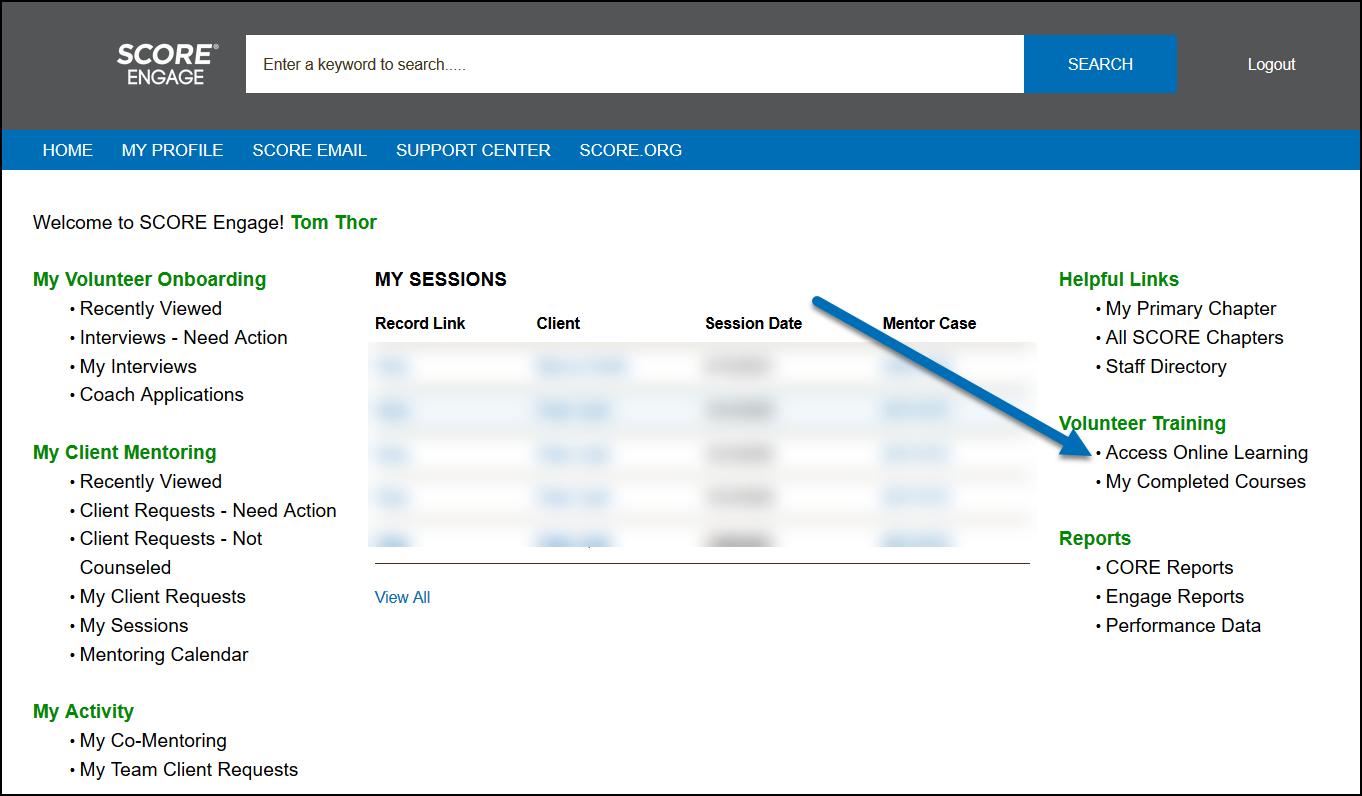
2) From the Engage homepage, click Access Online Learning on the right column, under the Volunteer Training section.
3) This will take you to the SCORE Training Homepage.
In case you receive a message to disable a pop-up blocker preventing SCORE Training from launching, you can follow these instructions here to disable that pop-up blocker and access the SCORE site: https://help.score.org/hc/en-us/articles/360033477074-How-to-Disable-Common-Pop-up-Blockers
4) Not all modules will appear on the first page. Please click “All Courses” and then scroll down to find the module(s) you are looking for. Click a module to start the course of your choice.
Note: Note: For new Provisional members, modules 001-007 are required, as well as 009 SCORE Workshop: Simple Steps to Starting Your Business, which satisfies the workshop requirement. You can review the complete onboarding requirements here Onboarding Process for All Volunteers
5) To register for the course, click Register.
6) Then, click Start.
6) Select the training link to start the video or to view the training document.
7) After viewing all the pages in the training modules, click the Exit Module button to close the window and ensure your completion is recorded in Engage.
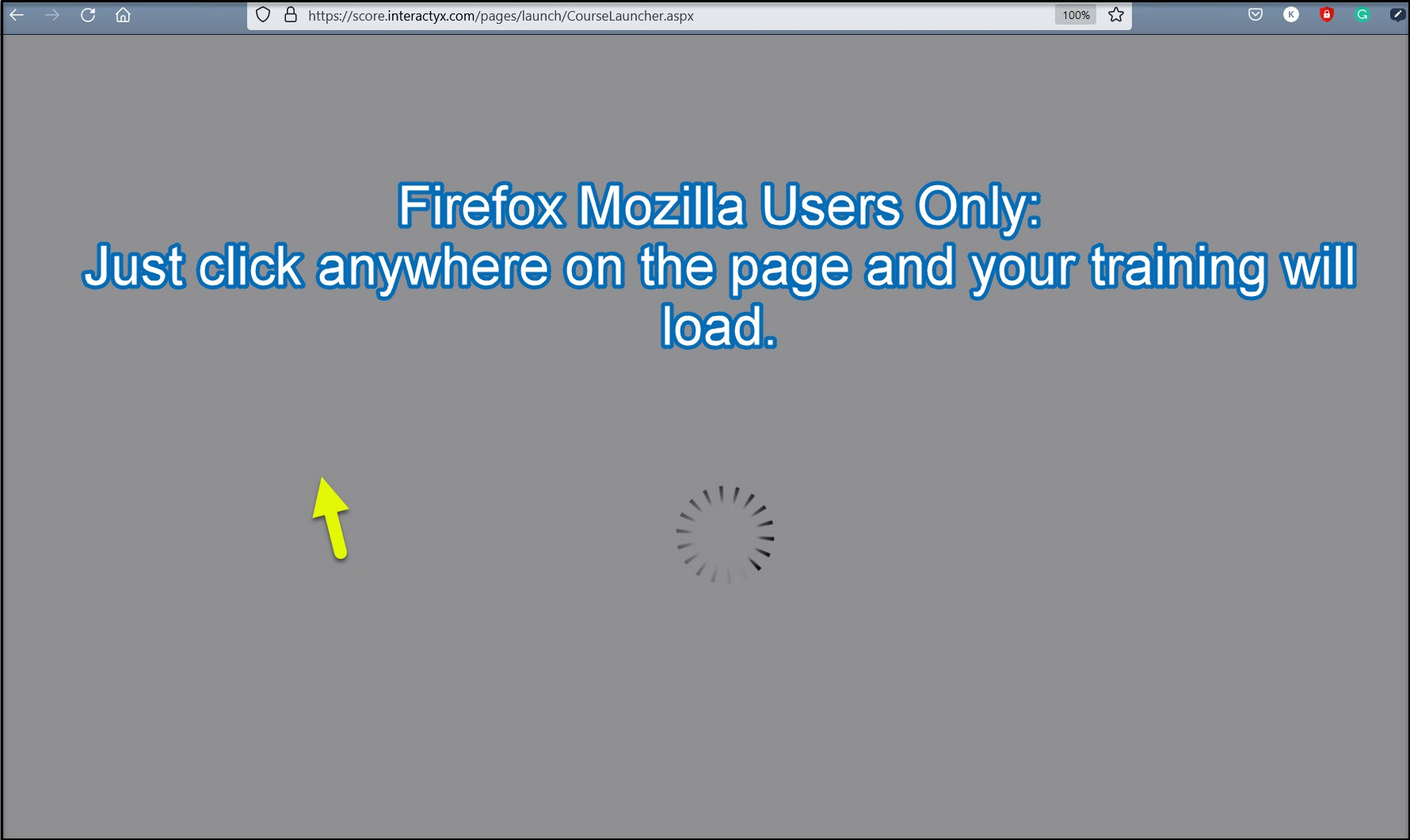
For Mozilla Users Only:
Step 8) Due to a recent update with Firefox Mozilla, our users are required to do this next step. When a module opens and it's loading, click anywhere on the page to load the page.
How to View Completed Courses
1) Log in to Engage at https://scoreengage.my.site.com.
2) From the Engage homepage, select My Completed Courses.
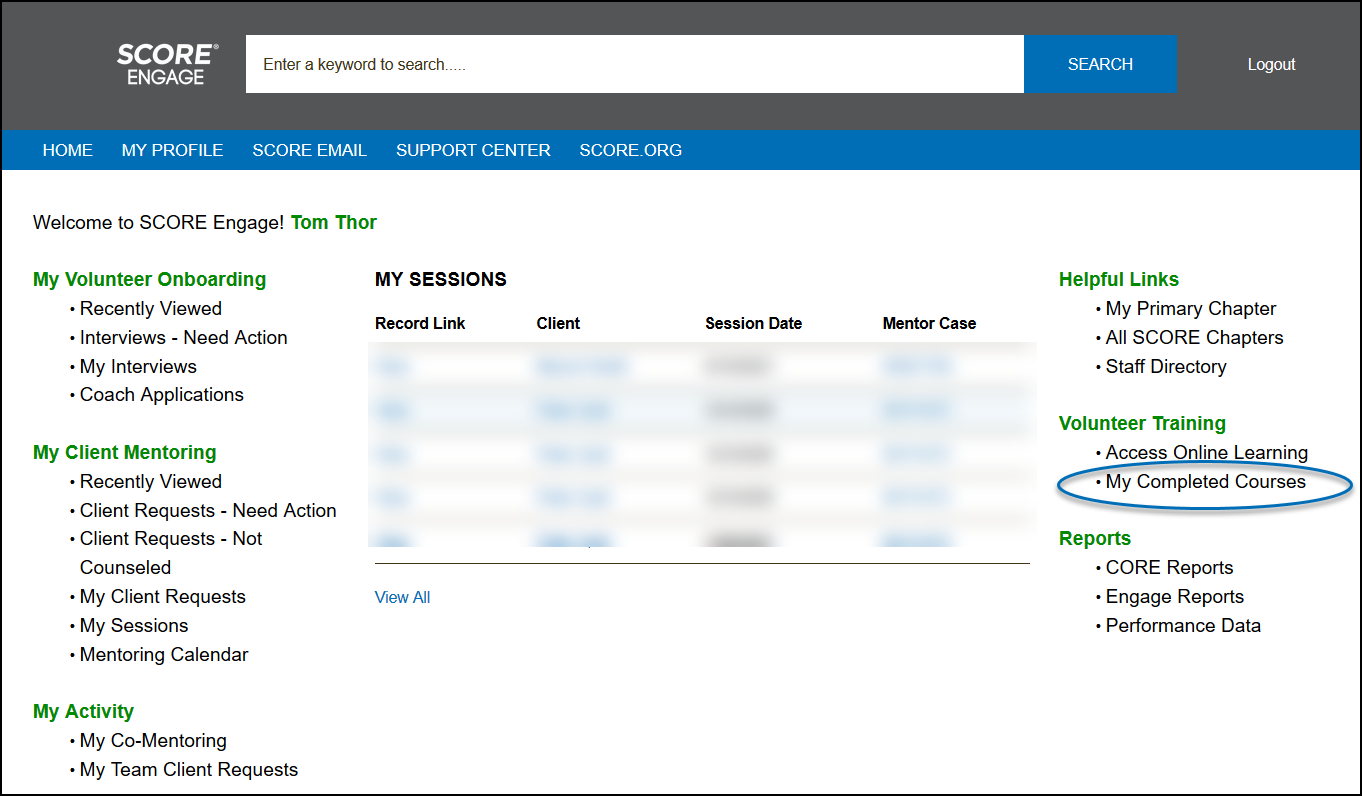
3) The page will show the details of the courses you've completed on the Online Learning/SCORE Training page.
Relevant Resources:
How to Disable Common Pop-up Blockers

