


Introduction
Browser profiles are separate profiles that you can use on a computer. Creating a browser profile allows you to store your bookmarks, search history, passwords, extensions, and other settings on that profile only.
By creating a personalized browser profile for your SCORE life, you can keep it separate from your personal life.
Table of Contents
______________________________________________________________________________________________________________
Google Chrome
How to Add a SCORE Profile:
- In Chrome browser, at the top right, click Profile
.
- Click + Add from the drop-down.
- Select Sign In.
- Enter your SCORE Email address and password in the fields provided.
- Click Next. A new window will open and ask you to turn on sync, select Yes, I'm in.
Watch this video recording here for reference:
External Reference: Create Chrome browser profiles
Microsoft Edge
1. Open the MS Edge browser, at the top left, click Profile .
2. Hover the cursor on Other Profiles and select Setup New Work Profile.
3. Confirm adding a profile by clicking the Add button.
4. Select Start without your data OR select Sign in to Sync data if you have a Microsoft Account associated with your SCORE Email.
5. Click Confirm and start browsing button.
Watch this video recording (no audio) for reference:
External Reference: Create Multiple Profiles in Edge
Mozilla Firefox
1. Open Mozilla Firefox and type this in the website address bar: About: Profiles
2. Click the Create a New Profile button on the page.
3. Select Next on the wizard.
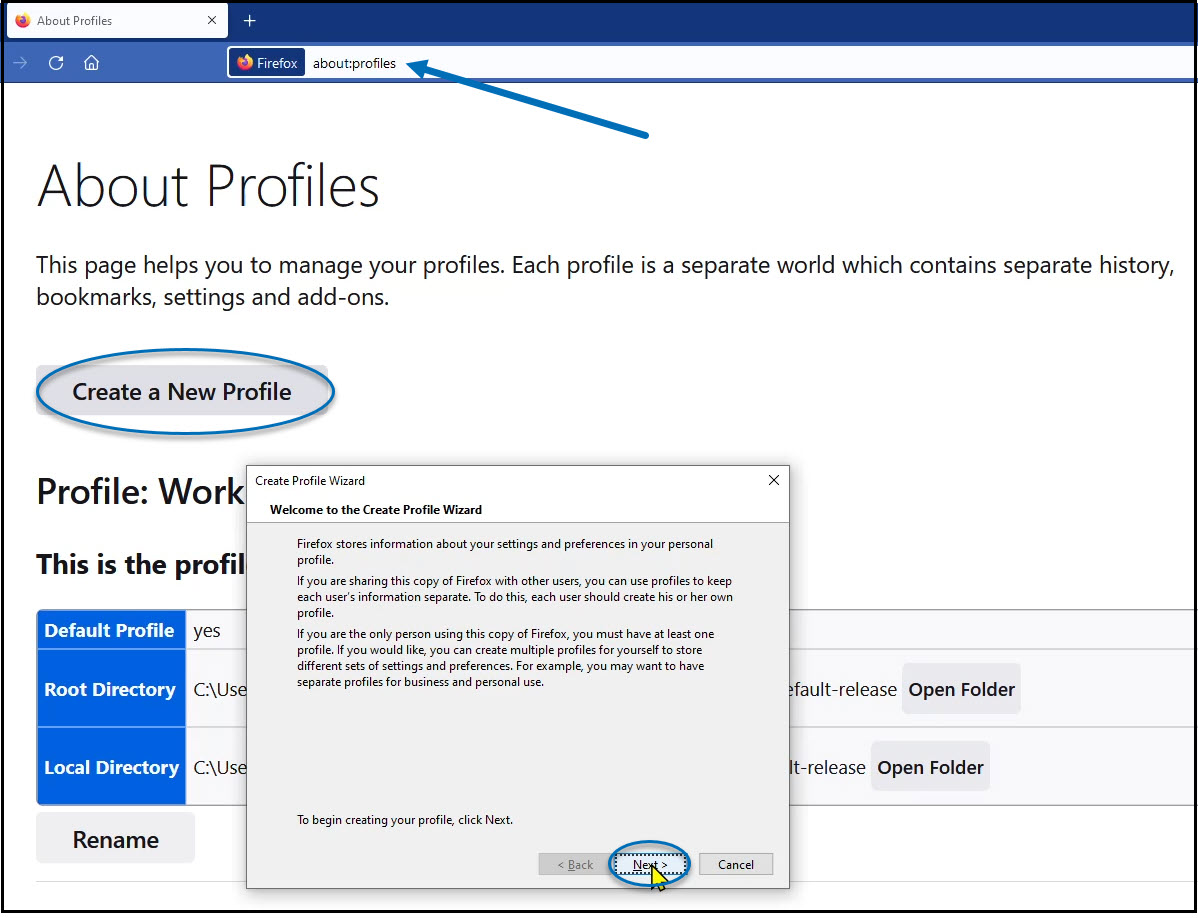
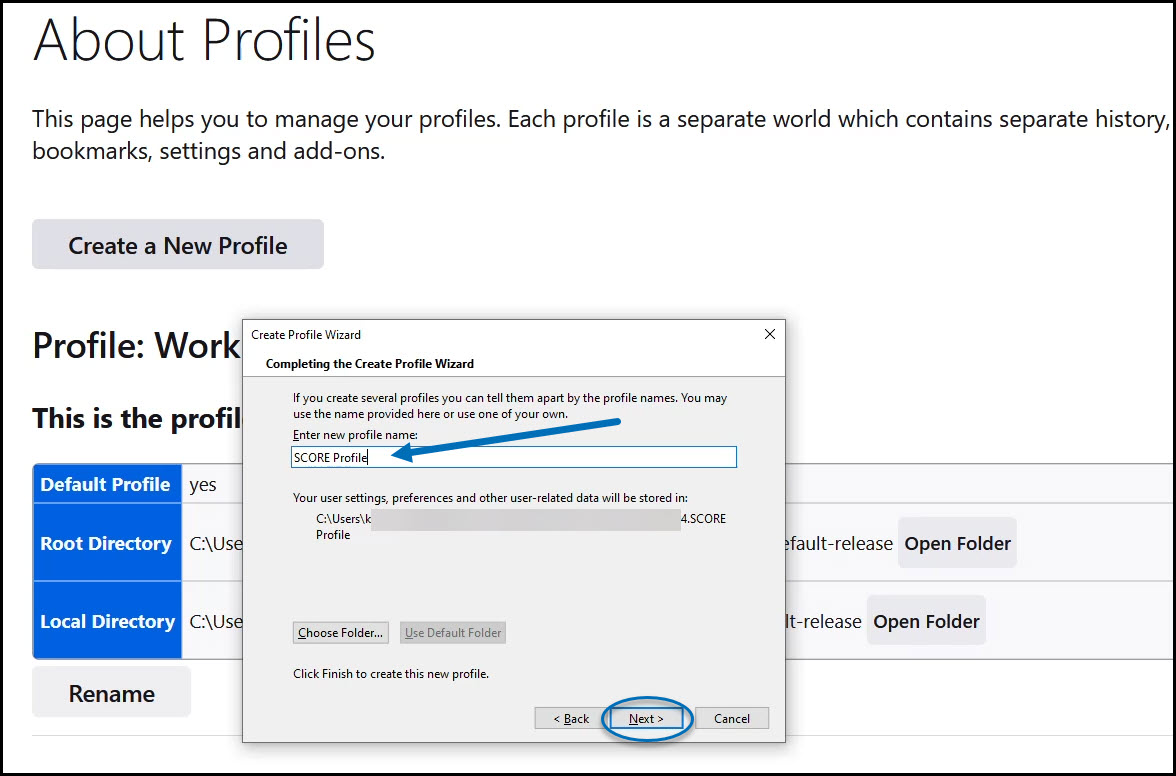
4. Then, create a new profile name. Recommeded name: SCORE Profile. Follow the prompts until you see the Finish button.
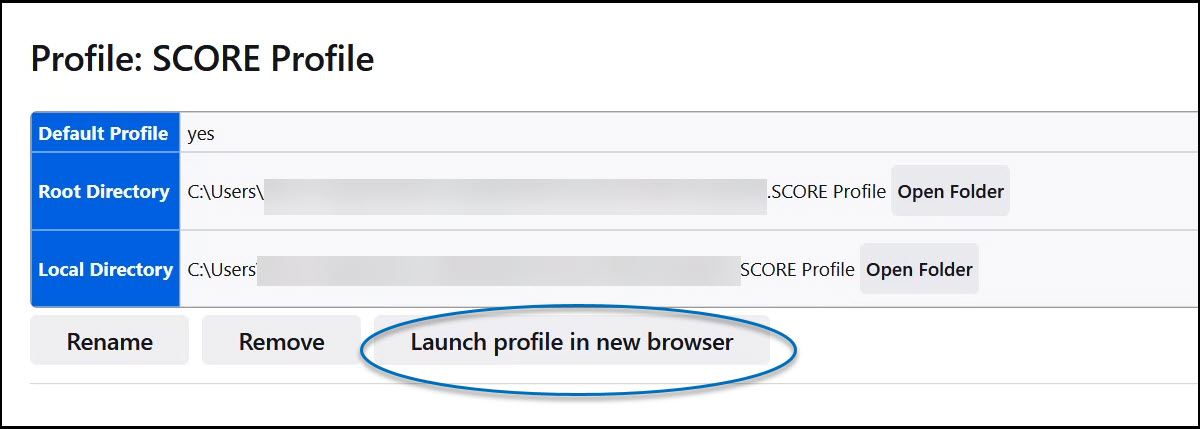
5. To start using the profile, go to the profile in the About:Profiles page and click Launch Profile in new browser.
External Reference: Profile Manager
Notes and Limitations
Safari browser does not support creating multiple browser profiles.
No mobile counterparts - mobile devices do not support multiple profiles.
If your browser is not listed in this guide, please check the vendor's website.

