


Audience: All Users
What is a Cache?
What are Cookies?
Cookies are text files with small pieces of data used by web servers to save browsing information and allow websites to remember your computer and your browser preferences.
Why should you Cache and Cookies?
Clearing cache and cookies are important in helping applications, such as Engage, run better in your computer. If you encounter slow load times or the page is not displaying correctly, the first troubleshooting step we recommend is to clear your cache and cookies.
This action will fix certain problems like loading or formatting issues on websites. It is also a good way to reset your browser so it can pull fresh files that could improve the speed and display of a webpage.
This article covers how to clear your browser cache and cookies in the most commonly used browsers. If your browser is not in the list below, please make sure to visit the vendor's website to get up-to-date information.
Table of Contents
________________________________________________________________________________________________________
Google Chrome
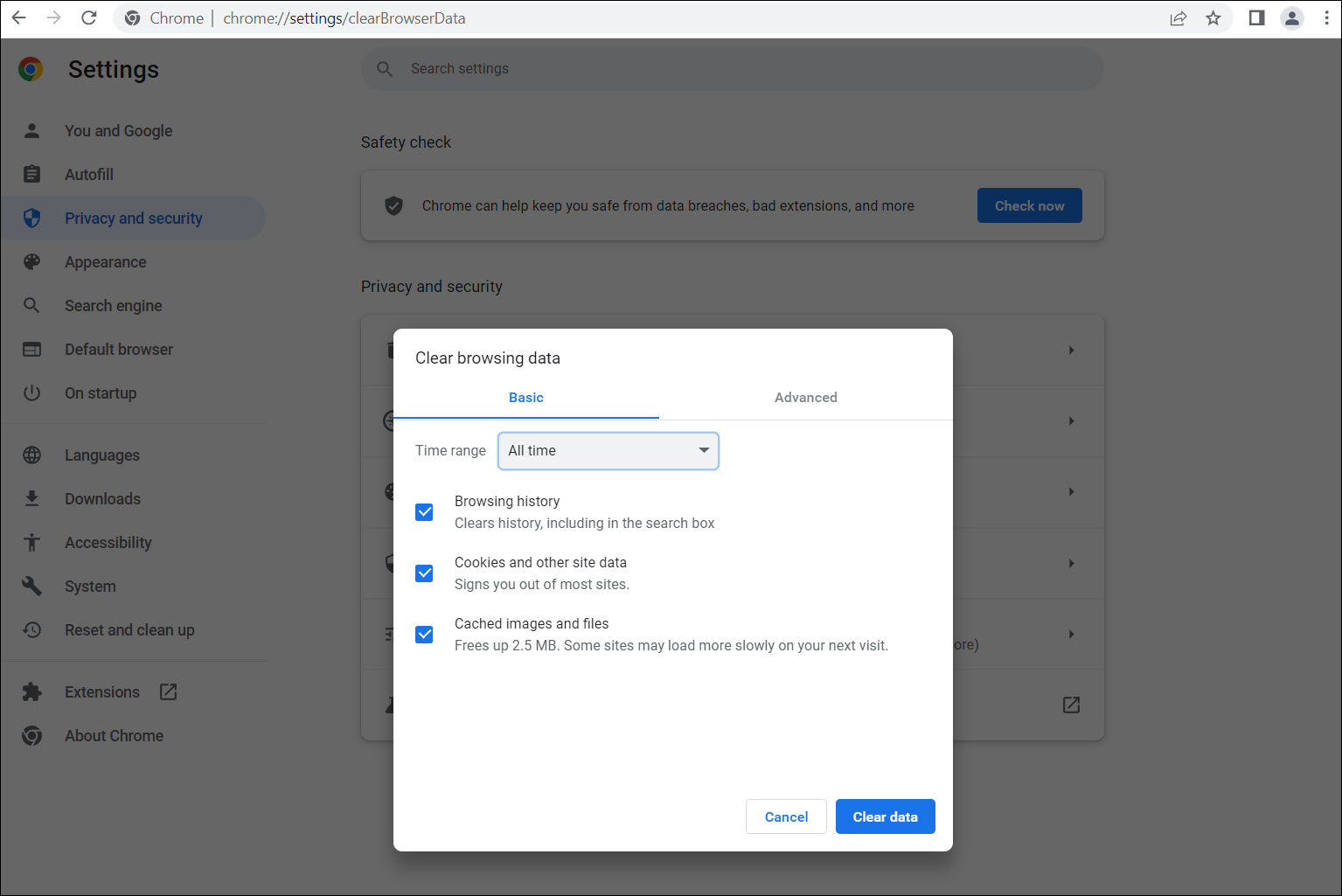
1) Open Google Chrome and in the address bar, type: chrome://settings/clearBrowserData
2) Adjust the time range. Leave the checked boxes on browsing history, cookies, and cached images.
3) Click Clear data.
Alternative steps can be found here: Clear cache & cookies.
Microsoft Edge
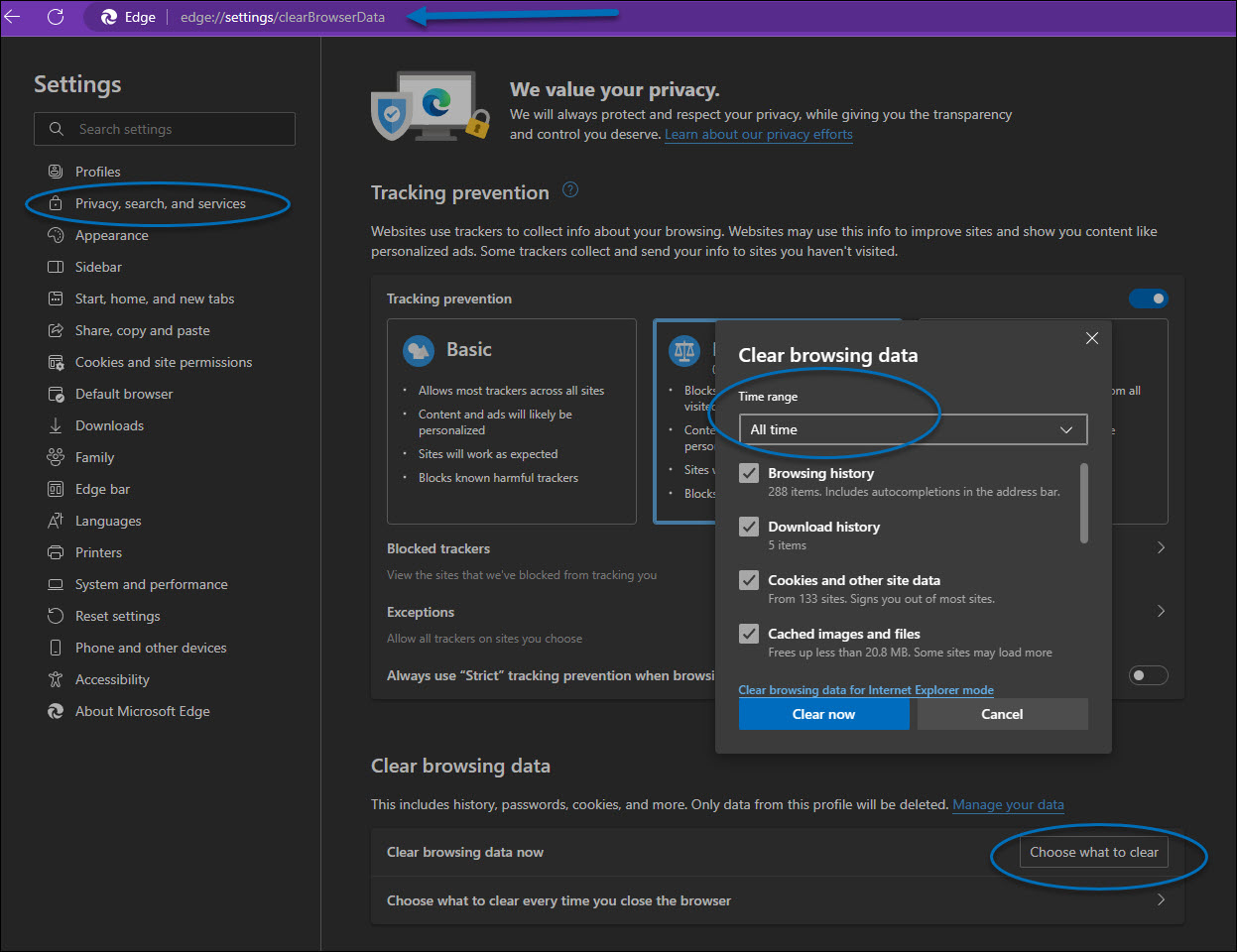
1) Open MS Edge and in the address bar, type: edge://settings/privacy.
2) Select Privacy, search and services on the left panel.
3) Scroll down to Clear browsing data and click Choose what to clear.
4) Adjust the time range and leave the checked boxes specifically for cookies and other site data and cached images and files.
5) Click Clear now.
Alternative steps can be found here: Delete Cookies in Microsoft Edge.
Mozilla Firefox
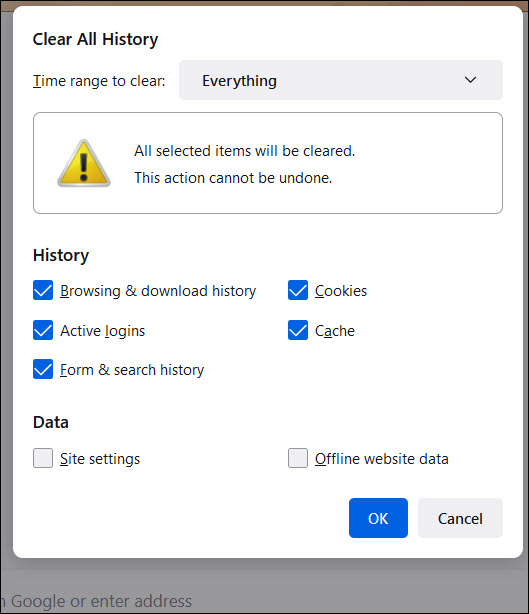
1) Open Firefox, then click the application menu  on the top right.
2) Select History from the drop-down menu.
3) Then, select Clear Recent History.
4) In the pop-up window, adjust the time range to clear then click Ok.
Alternative steps can be found here: How to clear the Firefox cache.
Safari
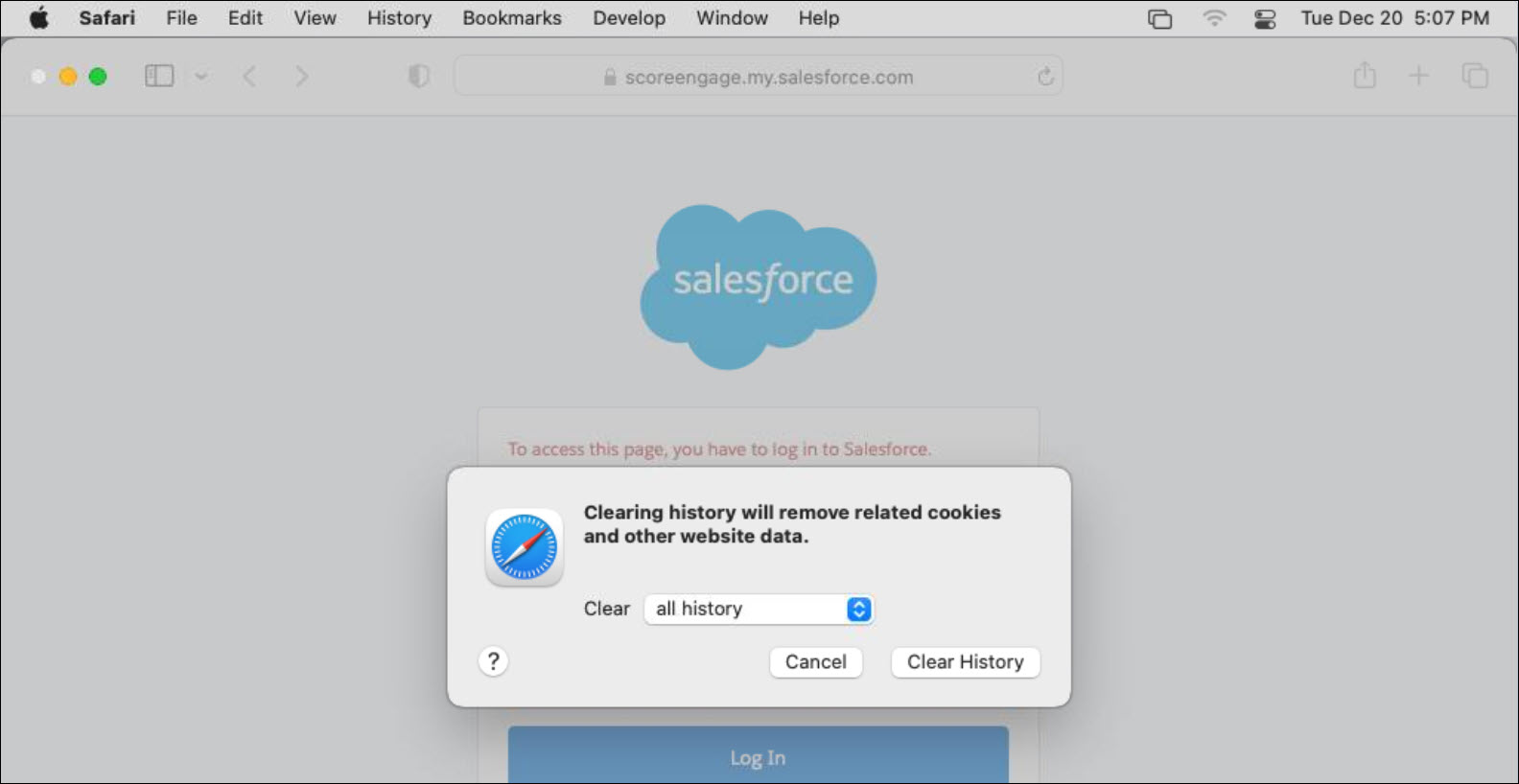
1) Click the Safari menu, then Clear History.
2) In the Clear field choose All History
3) Click Clear History.
Alternative steps can be found here: Clear cookies in Safari on Mac.

