Chapter Refunds in Paypal

Feb 17, 2026
 2
2
To process a refund for transactions made through the SCORE National PayPal account, some of the
following information should be obtained prior to processing the refund. Download Guide to Paypal Refunds
1.) Date of the transaction
2.) Transaction Amount
3.) Payer’s first and last name
4.) Payer’s email address
5.) PayPal Transaction ID found on the PayPal receipt
or by looking at the detail in Intacct under workshop revenue. It will be called the document ID.
LOCATING PAYPAL TRANSACTIONS IN INTACCT
Chapters who are using ENGAGE for event management should wait until transactions are posted to the Intacct accounting system before issuing PayPal refunds for workshops. This is because you cannot see the workshop detail in PayPal. If searching by name or email and there are multiple transactions, this will ensure the correct transaction is refunded. Transactions are posted in Intacct by close of business on Tuesday for the prior Monday through Sunday based on the date of payment. For example, Monday, January 1 through Sunday, January 7 would be posted by end of day Tuesday, January 9.
Identify Workshop Transaction in Intacct
i. Login to Intacct Accounting System and start from the chapter dashboard.
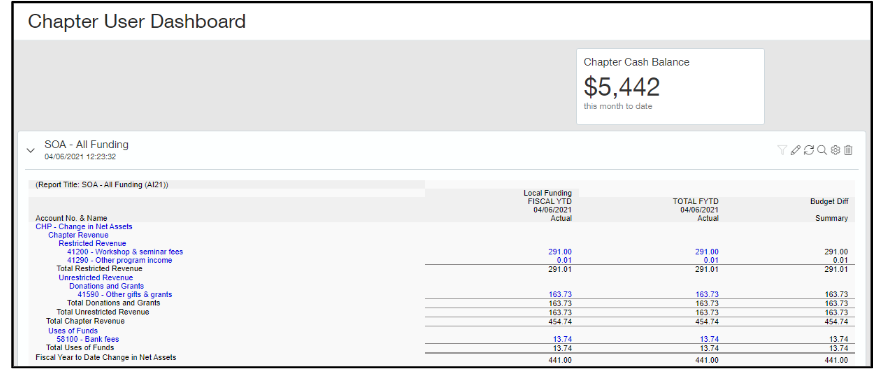
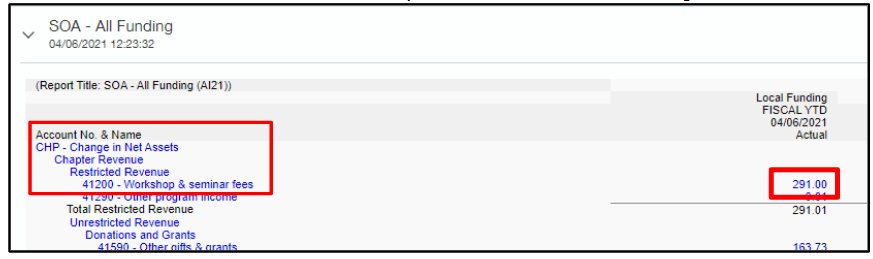
ii. Locate the dollar amount in 41200-Workshop & seminar fees under Local Funding and click on it.
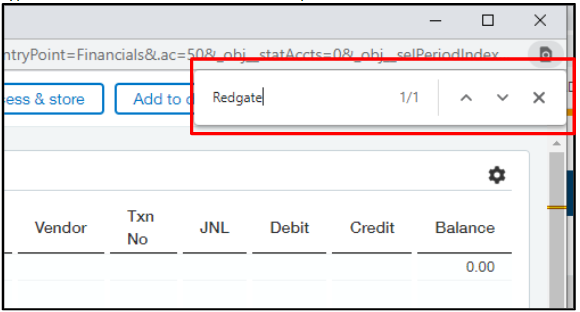
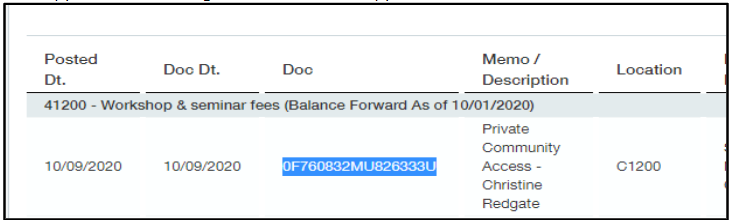
iii. The transactions are listed in order by posted date which is the date the payment was made. The Memo/Description field has the name of the workshop and the name of the registrant. The Doc field is the PayPal Transaction ID. NOTE: To easily find the transaction click CTRL+F in Intacct and a box will open at the top right. You can type in the attendee’s name or workshop name and the transactions will be highlighted.
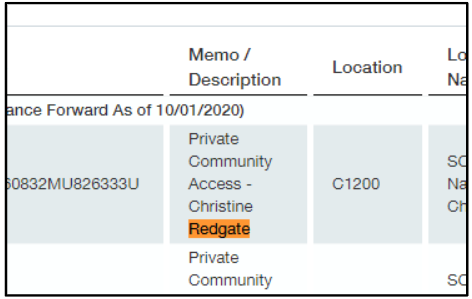
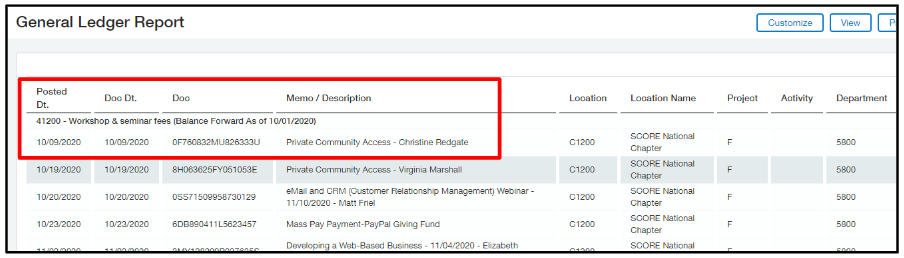
iv. You can either keep this screen open and use a new browser window to open PayPal or copy and paste the Doc number somewhere so you can copy it into the search bar in PayPal. This is easier and there is less likelihood of mistakes than trying to type it. To copy, just drag the cursor over the full document number and copy with Ctrl + C or right-click and choose copy.
LOGGING IN USING THE SCORE NATIONAL PAYPAL ACCOUNT
Chapters will have access to SCORE Headquarters National PayPal account via a User ID. SCORE Headquarters will provide the User ID and password to Chapters that utilize the SCORE National PayPal account.
NOTE: The User ID cannot be changed. Password changes should be coordinated through SCORE Headquarters.
Logging in to PayPal
i. In a web browser such as Internet Explorer, Firefox, or Google Chrome, enter www.paypal.com into the address bar and press Enter on the keyboard.

ii. The PayPal Home page appears. Click the Log In button at the top right or right middle of the screen.
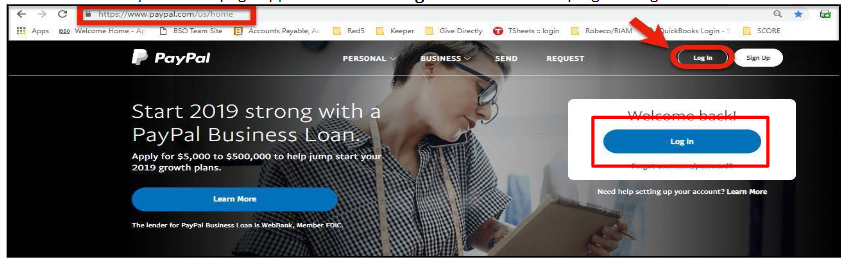
iii. Enter the User ID and the password provided by HQ in the appropriate fields and then click Log In.
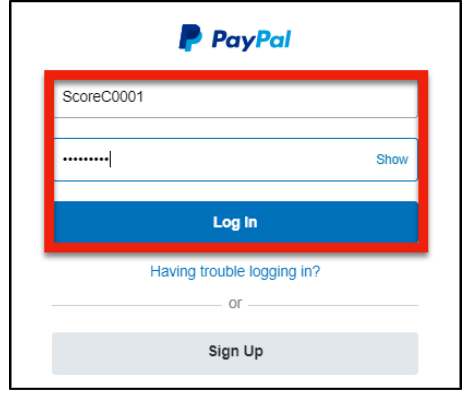
To Issue Refunds from the National PayPal Account
To process a refund for transactions made through the SCORE National PayPal account, some of the following information should be obtained prior to processing the refund.
1.) PayPal Transaction ID found in Intacct.
2.) Date of the transaction revenue.
3.) Payer’s first and last name
4.) Payer’s email address
5.) Transaction Amount
1.) PayPal Transaction ID found in Intacct.
2.) Date of the transaction revenue.
3.) Payer’s first and last name
4.) Payer’s email address
5.) Transaction Amount
NOTE: The best way to search is by Transaction ID.
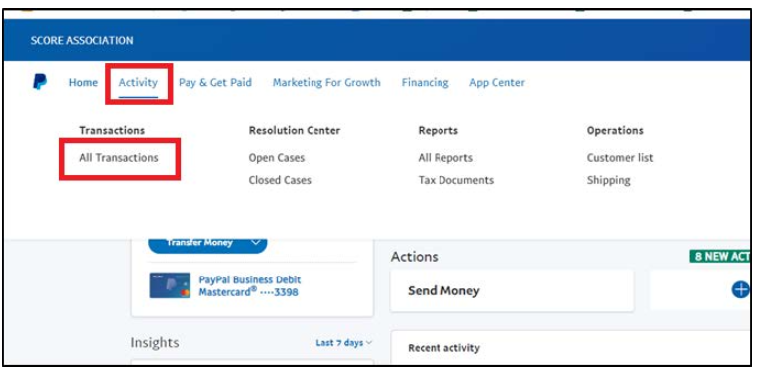
i. Click on or hover over Activity in the menu and click on All Transactions just below it.
ii. In the drop-down menu in the search bar on the left choose which item you will search by (the Docnumber from Intacct is Transaction ID). NOTE: Searching by Transaction ID is so unique, you can leave all selected if using that.
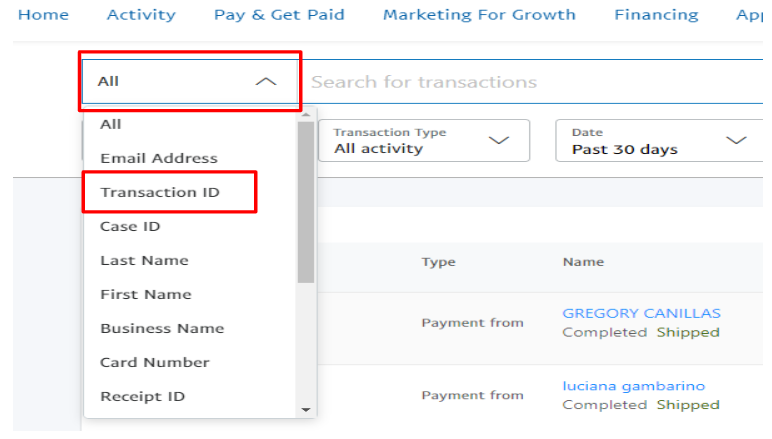
iii. Copy or type the information into the right part of the search bar and hit enter or the magnifying glass at the end of the search bar.

iv. You will see the transaction you were searching for. On the right side of the transaction, it should default to Refund, if not, select from the drop-down.

v. Confirm the information and change the amount if doing a partial refund.
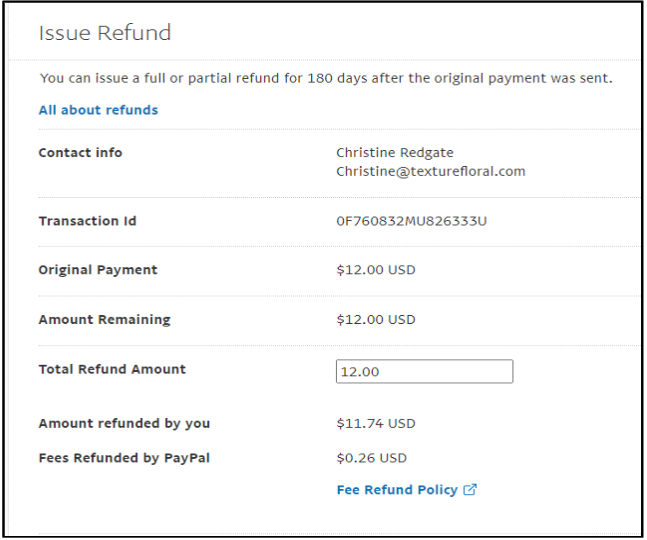
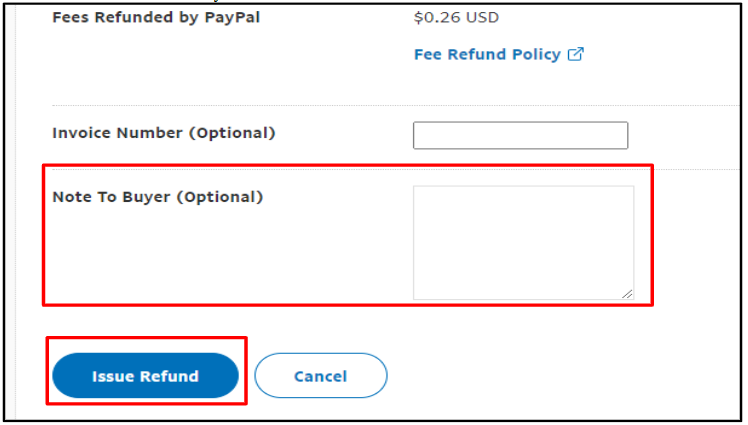
vi. At the bottom of the refund you can add an optional note to the registrant then click Issue Refund. The screen will tell you the refund has been issued.