


Audience: Membership Chair/ Chapter Chair
Introduction
It is important for all SCORE volunteers to maintain an accurate status. A status can be applied to a volunteer’s record automatically by the system based on certain triggers or it can be updated manually. To help SCORE maintain accurate information, there is an annual requirement for each volunteer to review their status.
Note: To view the full list of notifications for the Volunteer Journey, click here. (You must be signed into your @scorevolunteer.org account)
Table of Contents:
_____________________________________________________________________________________
Update A Volunteer's Status
1) Search Volunteer in Engage.
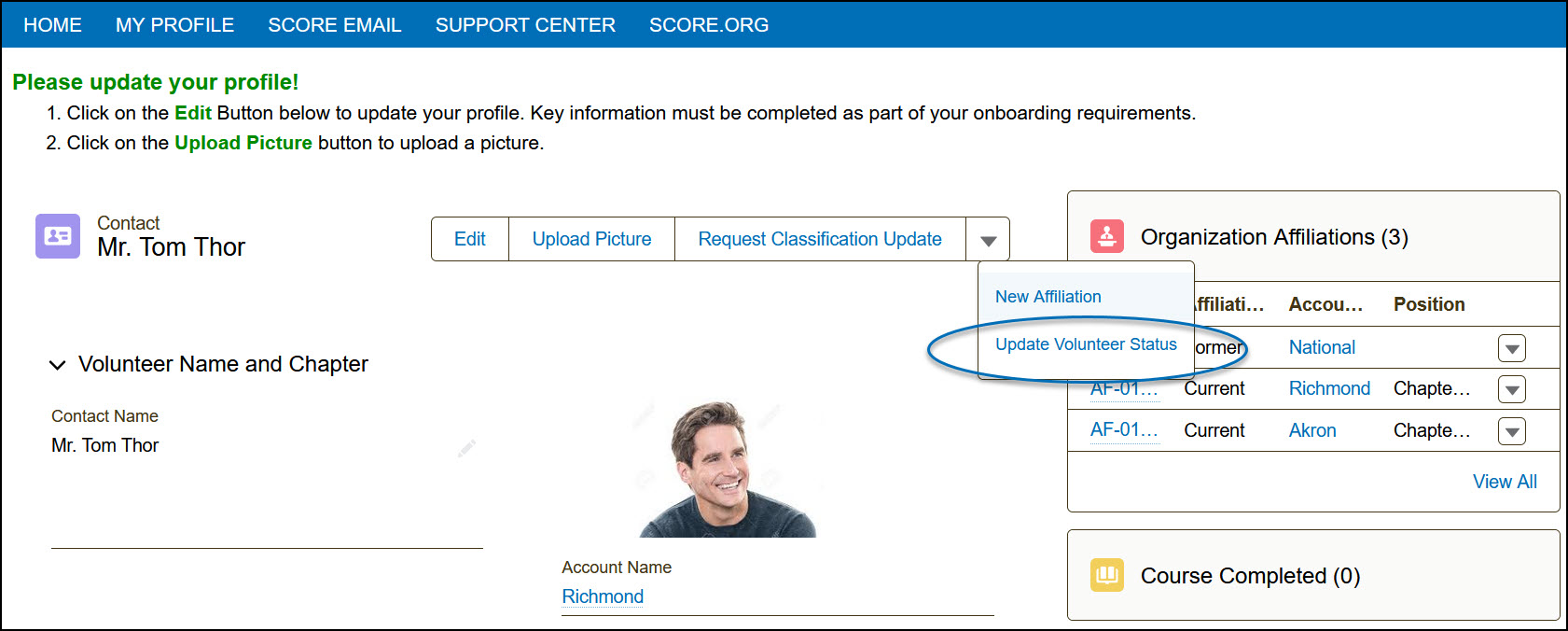
2) Click the drop-down arrow  and select Update Volunteer Status.
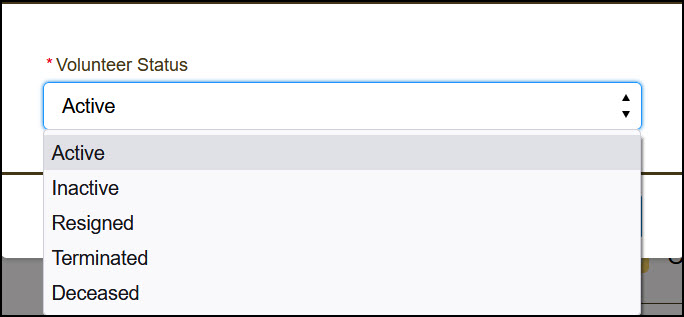
3) Select the new Status and click Next.
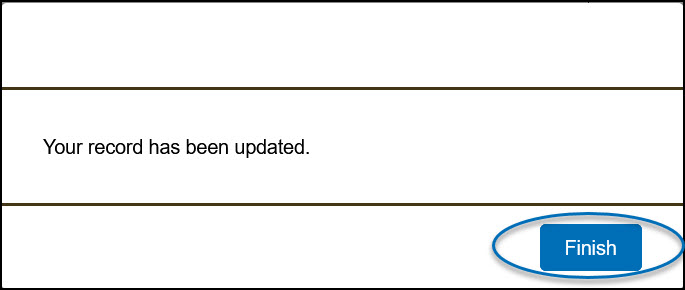
4) Click Finish.
5) After changing the status on the volunteer's profile page, please send an email to [email protected] to have our team remove the leave date.
Volunteer Statuses
In most cases, statuses are updated using system triggers and automation. Additionally, a 90-day time limitation now exists around the Inactive status. It can be extended if circumstances require it.
Volunteer Statuses
| Status | Description | How It Is Applied |
|---|---|---|
| 🔵 Prospective |
An applicant interested in becoming a SCORE Volunteer. |
System assigned when the application is submitted to SCORE. |
| 🔷 Provisional | An accepted applicant who has not completed the required onboarding requirements. |
System assigned when both interviewers enter “Accept” on the applicant’s interview record. |
| 🔵 Active | A fully trained volunteer in good standing. |
System assigned when a Provisional volunteer completes all required training. Can also be manually assigned by a Coach, VIC, or Chapter Manager. |
| 🔷 Inactive |
A volunteer who cannot actively serve or is not compliant with annual recertification or Code of Ethics requirements. |
System assigned when applicable requirements are not met. Maximum inactive period is 90 days, unless extended through the Inactive Override field. Inactive volunteers can still log in to Engage. Inactive Mentors cannot accept assignments. |
| 🔵 Resigned |
A volunteer who has taken action to leave SCORE, either voluntarily or following a period of disengagement. |
System assigned when onboarding is not completed within 90 days or required annual compliance is not completed by the deadline. Can also be manually entered when a volunteer resigns. Resigned volunteers cannot access Engage or their SVO account. |
| 🔷 Terminated |
A volunteer whose service with SCORE has been terminated, such as for a Code of Ethics violation or poor client service quality. |
Manually entered. A reason is required. This status cannot be changed once applied. The volunteer's SCORE email is deleted. |
| 🔵 Emeritus Not a Volunteer Status |
A tenured volunteer who can continue to interact socially with the chapter but does not serve clients. |
Manually entered on the volunteer profile. When Emeritus Status is set to Yes, the Volunteer Status should also be changed to Resigned. Reviewed annually by the Chapter Chair or Chapter Manager. |
| 🔷 Deceased | A volunteer who has passed away. |
Manually entered into the system. Any positions assigned to the volunteer are automatically removed. |

