



 0
0
Table of Contents
- Homepage Views According to Classification
- Admin Homepage Lists (RVIC, CIC and EM)
- Mentor Homepage Lists
_____________________________________________________________________________________________
Homepage Views According to Your Classification
Notes and Limitations:
- Refrain from using the View All link found at the bottom left of each dashboard report. Instead, select the list view from the left column to view all records.
- If there are no items on your Need Action list, your dashboard will be empty or blank.
Active (status) Mentor (classification)
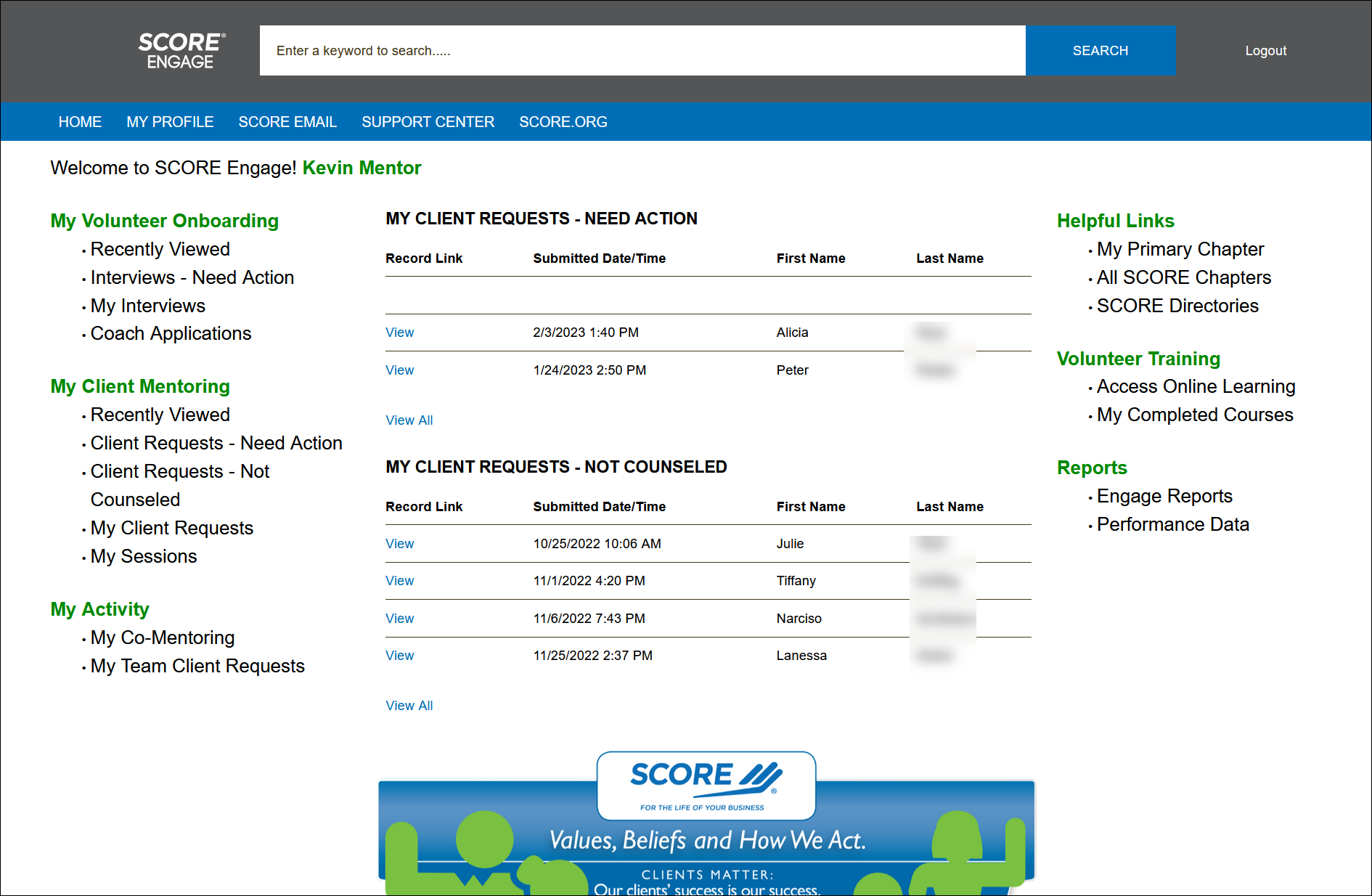
Active Mentor with Workshop Presenter Classification
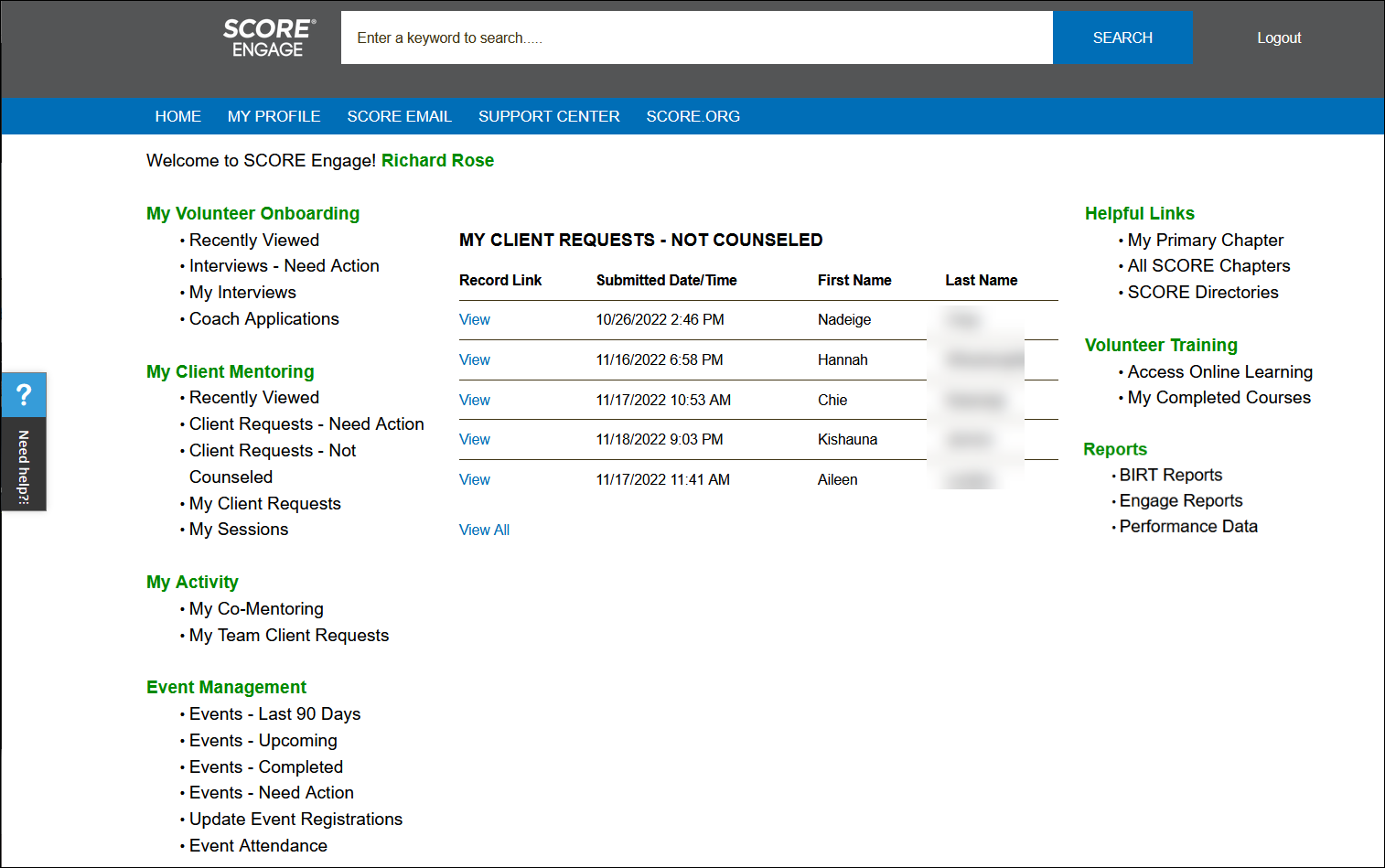
Workshop Presenter as Main Classification
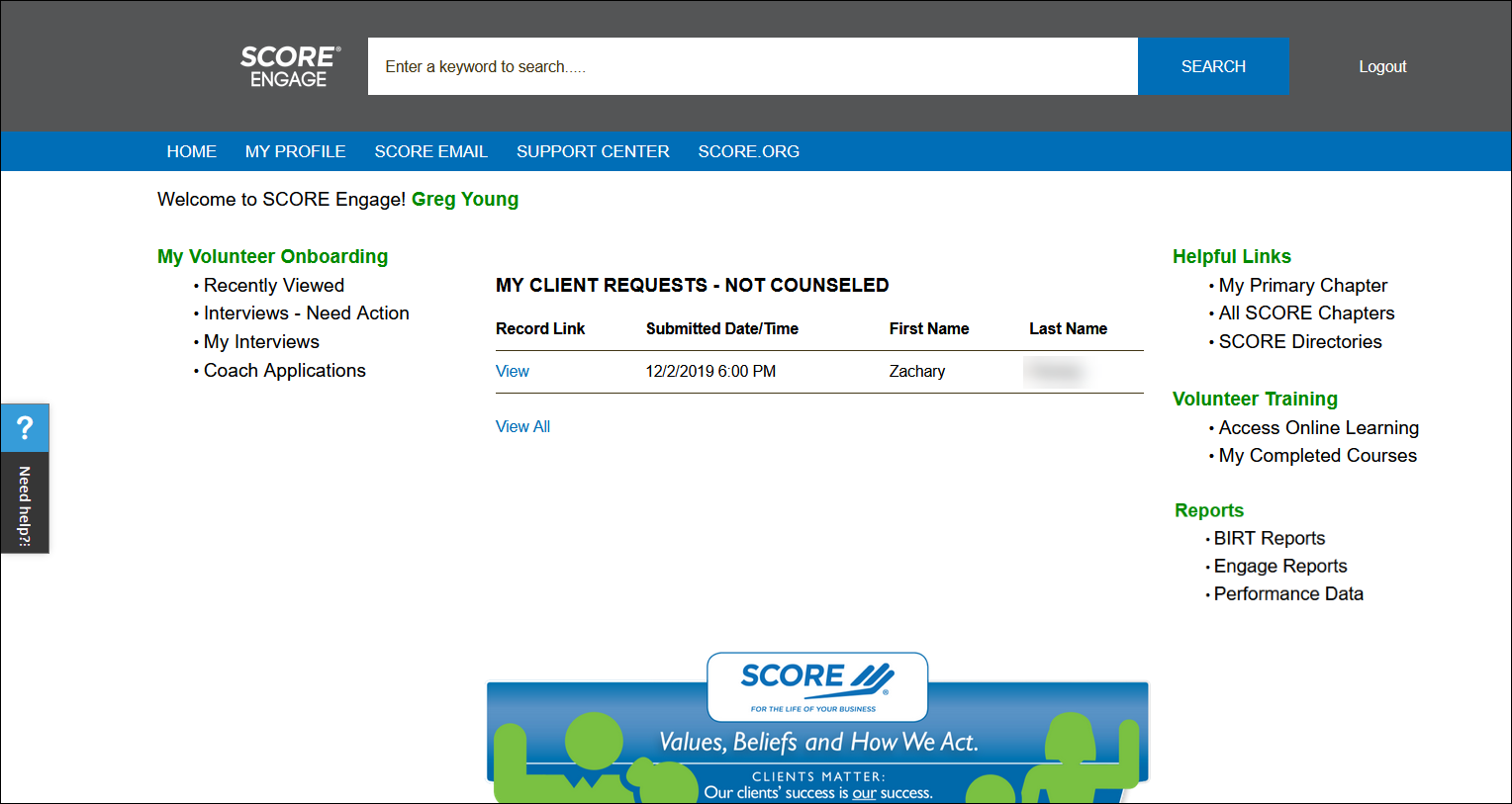
Subject Matter Expert
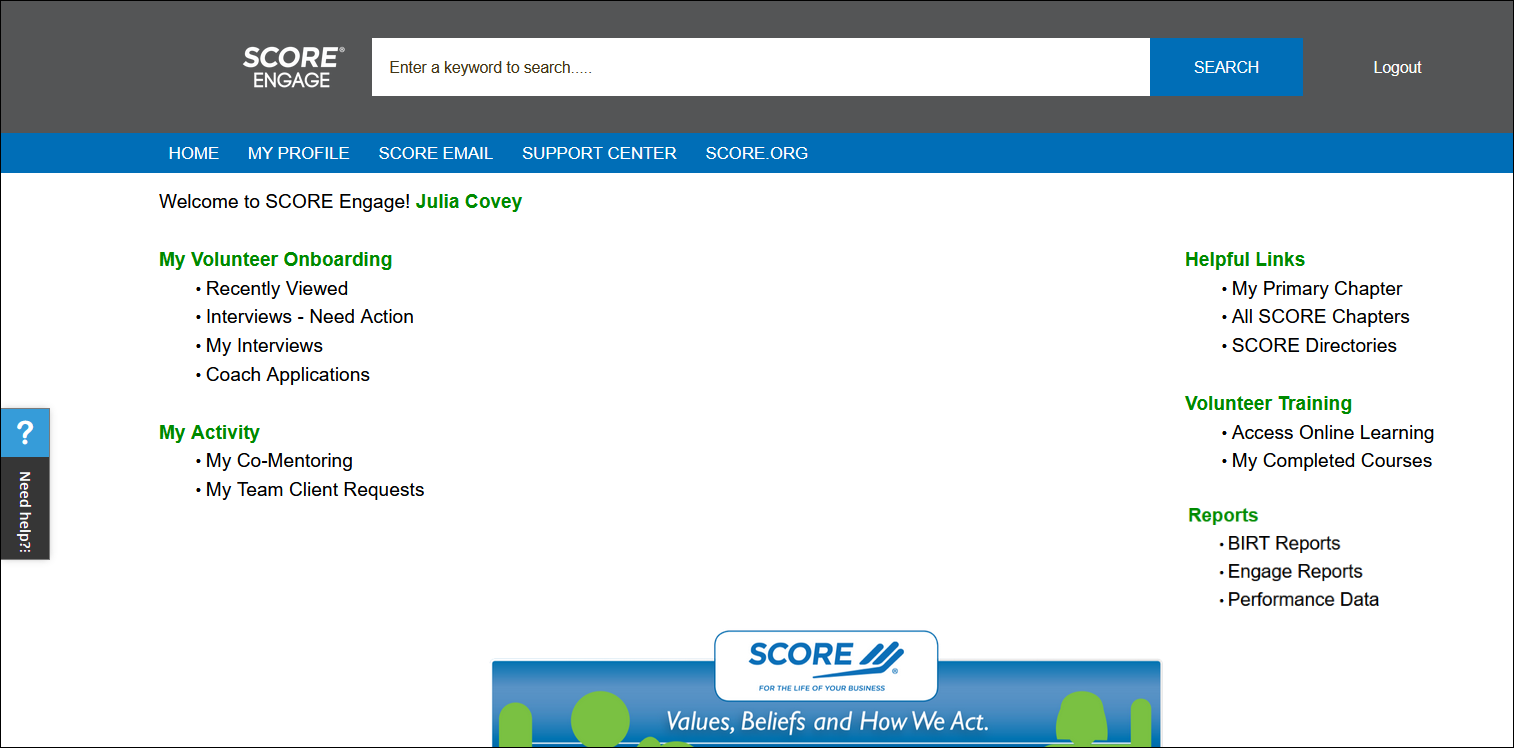
Volunteer
Chair, Co-chairs, Vice Chairs, District Directors, ADDs, RVPs
Homepage Descriptions
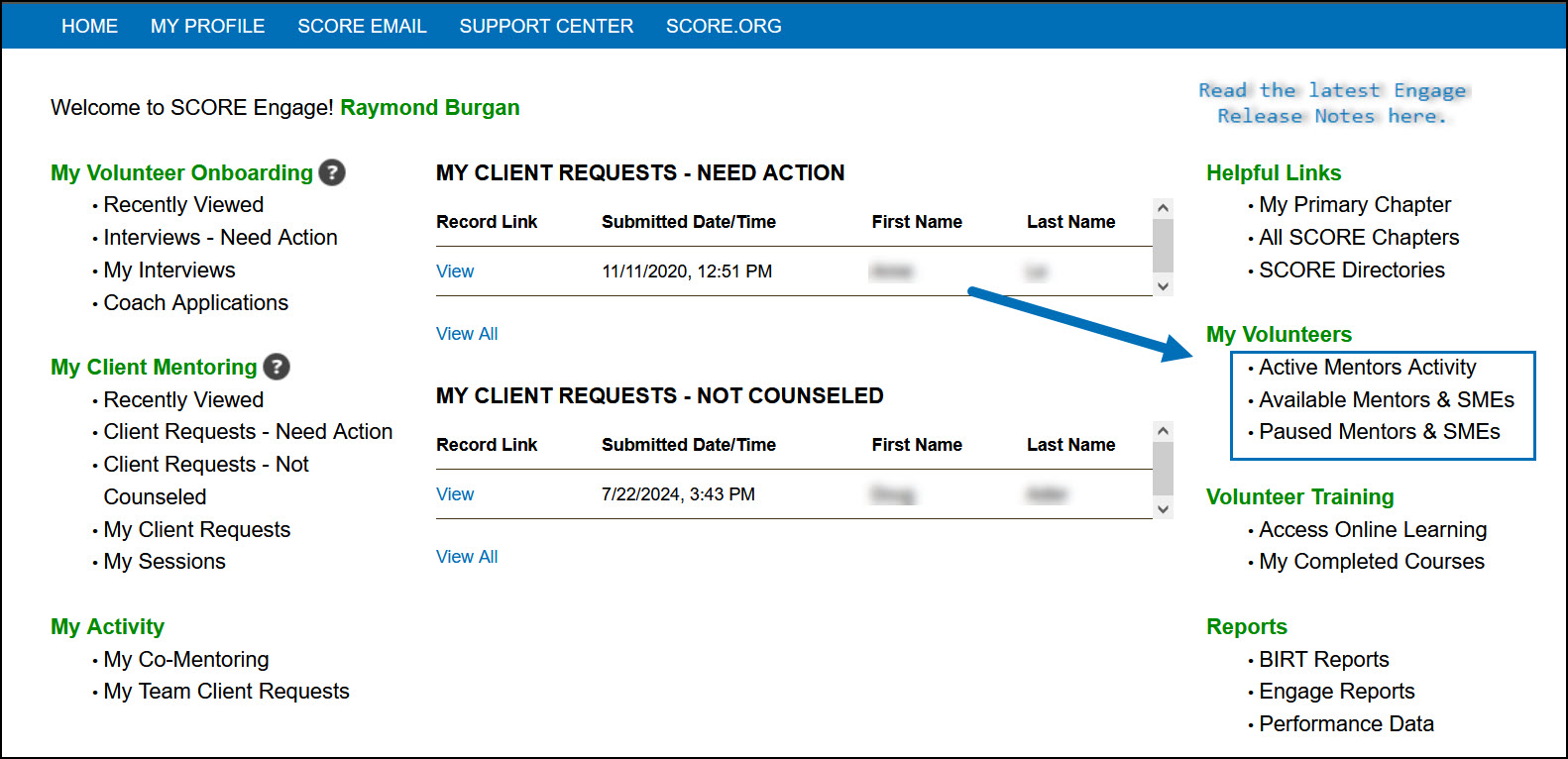
The following links appear on the left-hand side of your homepage. Please note they will vary depending on your status, position, and classification. The information below outlines the corresponding list view in Engage for each of these links and describes what information is shown in each.
Admin List Views
Chapter Volunteer Onboarding - only available for the Regional Volunteer Intake Coordinator position
-
- Recently Viewed – Displays the most recent records you've opened in Engage, including applications, volunteers, and contacts.
- Chapter Coaches – Displays all coaches within the RVIC’s chapter who are certified to support Provisional Volunteers.
- Chapter Interviewers – Displays all interviewers within the RVIC’s chapter who are certified to conduct interviews with applicants.
- Chapter Co-Mentors – Displays all certified co-mentors in the chapter who support Provisional Volunteers during onboarding.
- Applications – Need Action – Displays applications that require immediate action, such as assigning interviewers or updating statuses.
- Application Paused – Displays applications that have been paused by the RVIC and are temporarily excluded from onboarding activities and reporting.
- Applications by Status – Allows users to view volunteer applications grouped by their current status in the onboarding journey.
- My Prospective Applications – Displays applications for volunteers in the "Prospective" status assigned to you for review or action.
- My Provisional Applications – Displays volunteers in the "Provisional" status currently assigned to you, allowing you to monitor progress and complete onboarding steps.
Chapter Client Mentoring - only available for the Client Intake Coordinator position
- Recently Viewed - represents records or list views that the current user has recently viewed or referenced
- Client Requests - Need Action - shows all mentoring requests available in the client intake queue that are not closed and have an assignment statuses of Unassigned or Pending Reassignment
- Client Requests - Assigned/Not Counseled - a list view of all open and assigned mentoring requests in the chapter that do not have a mentoring session. This list view does not include requests with the following statuses: Withdrawn, Complete, and Unable to Contact
- Client Requests by Status - a list view of all of the chapter's mentoring requests with the assignment statuses of Unassigned, Assigned, Assigned-Pending, and Pending Reassignment
- Available Mentors & SMEs - a list view of all active Mentors and active Subject Matter Experts who are not on pause
Event Management - only available for the Event Manager position
- Events - Last 90 Days - shows all events for the chapter(s) in which the Event Manager(s) have current affiliations for the last 90 days
- Events - Upcoming - any events greater than the current day will show up in this list view
- Events - Completed - list of all completed events for the last 90 days
- Events - Need Action - list of all events that have been concluded but not yet set to completed
- Update Registrations - a list view of all event registrations visible to the Event Manager for chapter events, only unlocked/editable events are shown in this list
- Event Attendance - a list view of all event registrations for the last 90 days with the statuses: Attended, Canceled, No Show
Volunteer w/o Admin Access List Views
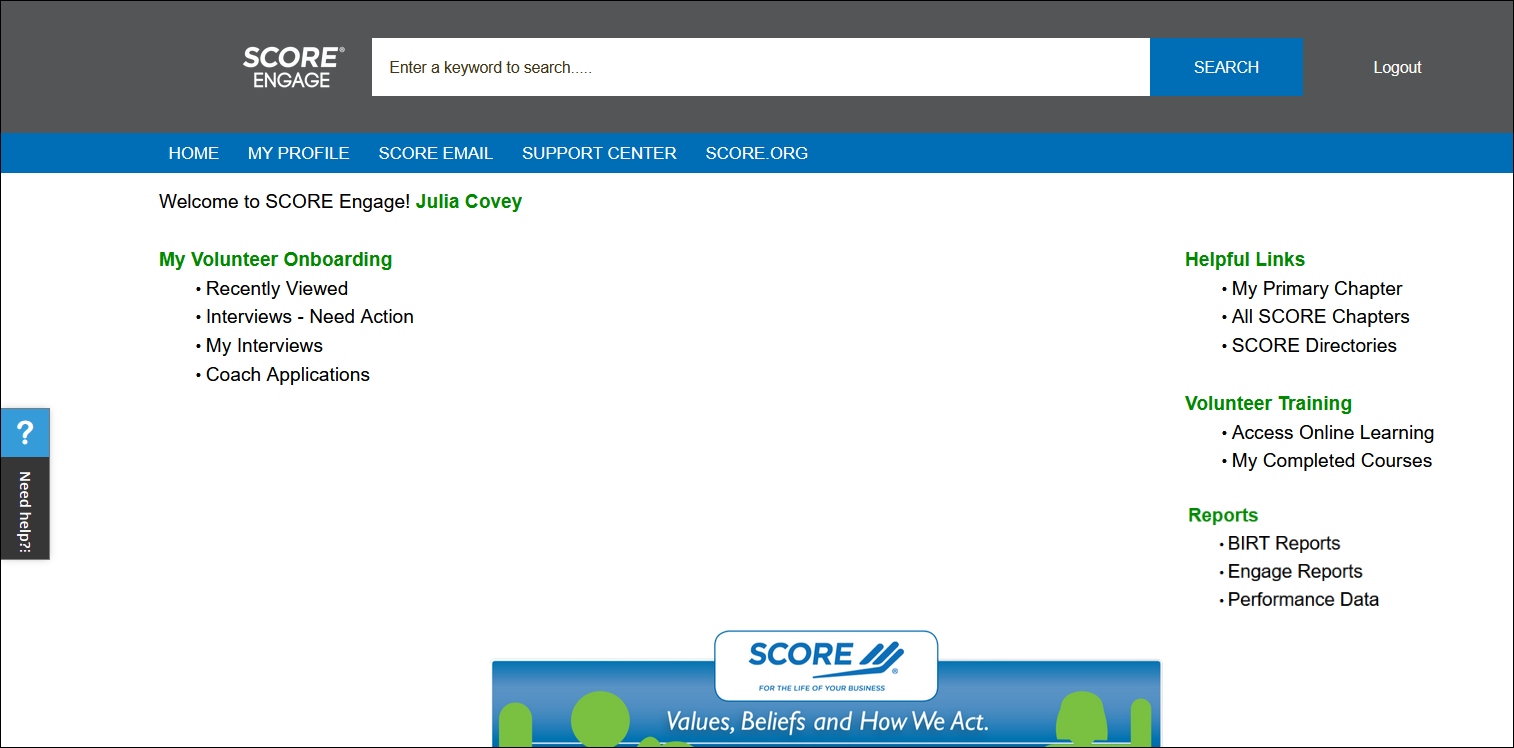
My Volunteer Onboarding
- Recently Viewed - represents records or list views that the current user has recently viewed or referenced
- Interviews - Need Action - shows all interviews assigned to the interviewer; interviews that appear here require an action from the interviewer to add a disposition of Accept or Reject; interviews that have been marked as Withdrawn or Rejected do not appear in this list
- My Interviews - a list view of all interviews that have ever been assigned to you as the interviewer
- Coach Applications - a list view of all open applications that are assigned to you as a coach
My Client Mentoring
- Recently Viewed - represents records or list views that the current user has recently viewed or referenced
- Client Requests - Need Action - shows all mentoring request cases with the statuses of Assigned-Pending that require your action to accept/decline as a mentor; this list view does not show mentoring request cases with the statuses of Withdrawn and Unable to Contact
- Client Requests - Not Counseled - a list view of mentoring request cases that are assigned to you as a mentor where no mentoring sessions have been added; this list view does not show mentoring request cases with the statuses of Withdrawn and Unable to Contact
- My Client Requests - a list view of all mentoring request cases that have the statuses In progress and Unable to Contact; this list does not show requests with Complete or Withdrawn statuses
- My Sessions - a list view of all sessions you've added to mentoring requests that have the statuses In progress and Unable to Contact; this list does not show sessions from mentoring requests which have been marked as Complete or Withdrawn.
My Activity
- My Co-Mentoring - this list view shows all mentoring sessions that you were added as a co-mentor
- My Team Client Requests -this list view shows all mentoring request cases that you were added as a case team member
The links outlined below appear on the right side of the home page in Engage. They are visible regardless of your position and classification in Engage.
Reports
- BIRT Reports - connects to the BIRT data; generate reports in BIRT such as the Volunteer Roster Report, MIS Reports, NPS Results; accessible by all but some chapter-level views are only available to a Chapter Manager role
- Engage Reports - only available to Volunteer Intake Coordinator, Client Intake Coordinator, and Event Manager positions; allows admins to generate reports containing records that may meet the criteria they've defined
- Performance Data - connects to the data on client impact and volunteer engagement reports
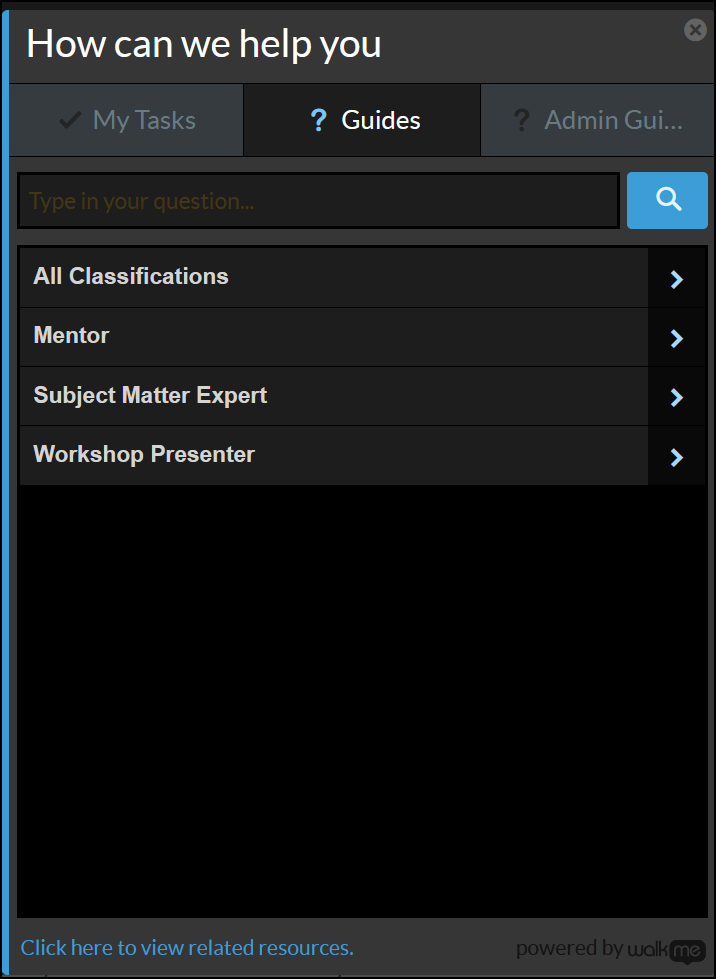
Don't forget that the WalkMe Widget is your friend.
 |
 |
 |

