



 0
0
Steps for getting chapter accounts set up in Zoom
Log in to your Chapter Admin Gmail Account
Username: [email protected]
Password: Email [email protected] if you do not know the email password
Once you are able to log in to the scorevolunteer.org email, please follow the steps below.
1. Go to the Zoom website - https://zoom.us/signin
2. To log in to your Chapter Zoom Account, go to the bottom of the Sign In screen
3. Hit Sign In with Google at the bottom of the next screen (see screenshot below)
4. Choose your Chapter Admin Gmail Account
5. Enter your permanent Gmail password once logged in, and fill out your profile information as necessary
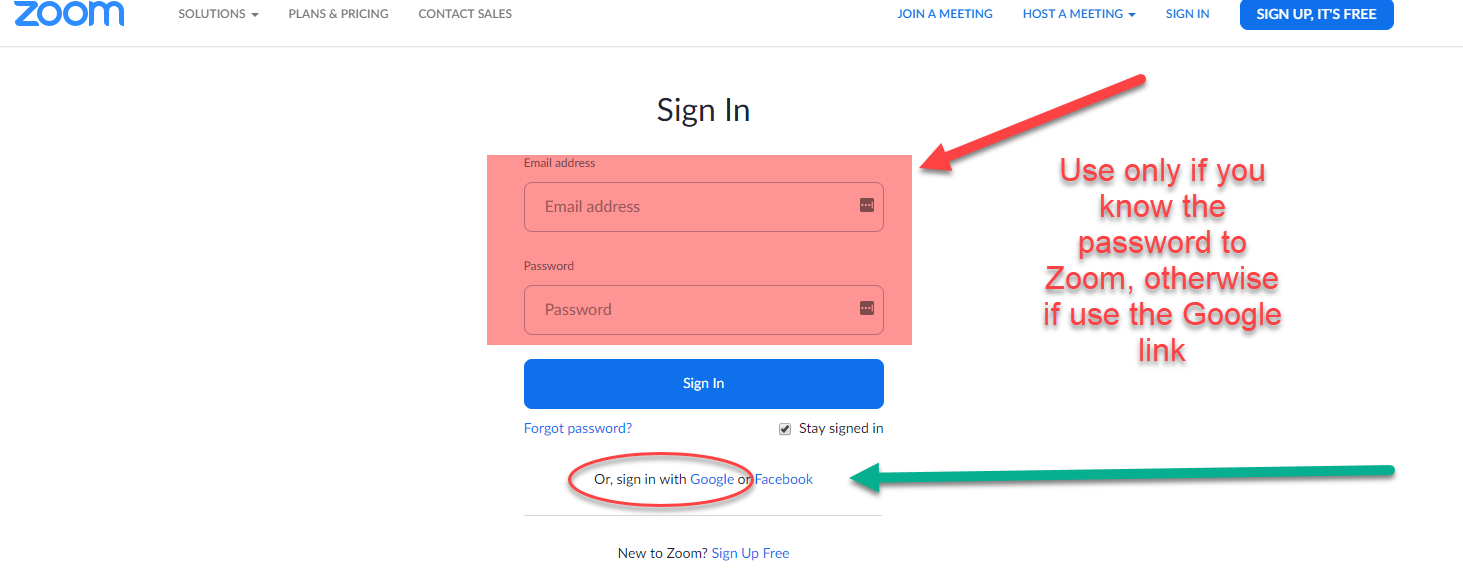
**As of October 1, 2020, SCORE HQ covers the cost for 1 Pro license per chapter, district, and region. If you are in need of additional Zoom Pro licenses, email [email protected] with the email address you'd like to request the license for. Please note, additional Zoom Pro licenses are a cost of $12/month allocated from the chapter/district/region budget.**
Q. Are there SCORE-branded virtual Backgrounds?
A. Yes! You can choose from these options here.
Q. Do my clients need Zoom to join our meeting?
A. No, attendees do not need to have a Zoom account to join the meeting. Here is a video on what clients can expect: https://support.zoom.us/hc/en-us/articles/201362193-Joining-a-Meeting
Q. Notifications/Reminders
A. The reminder feature is enabled for all our Zoom accounts. However, it's important to note that this reminder only works if users are signed into the Zoom Desktop App
- The notification is a desktop alert, not an email, so they will only receive it if they are already signed in on their computer.
- If anyone wants a reminder for an upcoming meeting or webinar, they’ll need to add it to their calendar manually, unless they consistently stay signed into the Zoom desktop app.
Q. Any best practices on security?
A. Some best practices recommended from MIT (via SCORE volunteer Bud Equi) are to use a waiting room feature and ask people to sign in with their full name. Manually only let in people invited. Lastly, you can lock the meeting once everyone has arrived. Here's how: https://blog.zoom.us/wordpress/2014/06/03/spotlight-security/

