



 0
0
Guide created by Jennifer Lang, Chapter Chair, SCORE North Cook and Lake Counties.
Recommend having your SCORE email open in another window.
Go to this link: www.zoom.us/signin
Once there, click on the Google logo at the bottom of the screen to sign in:
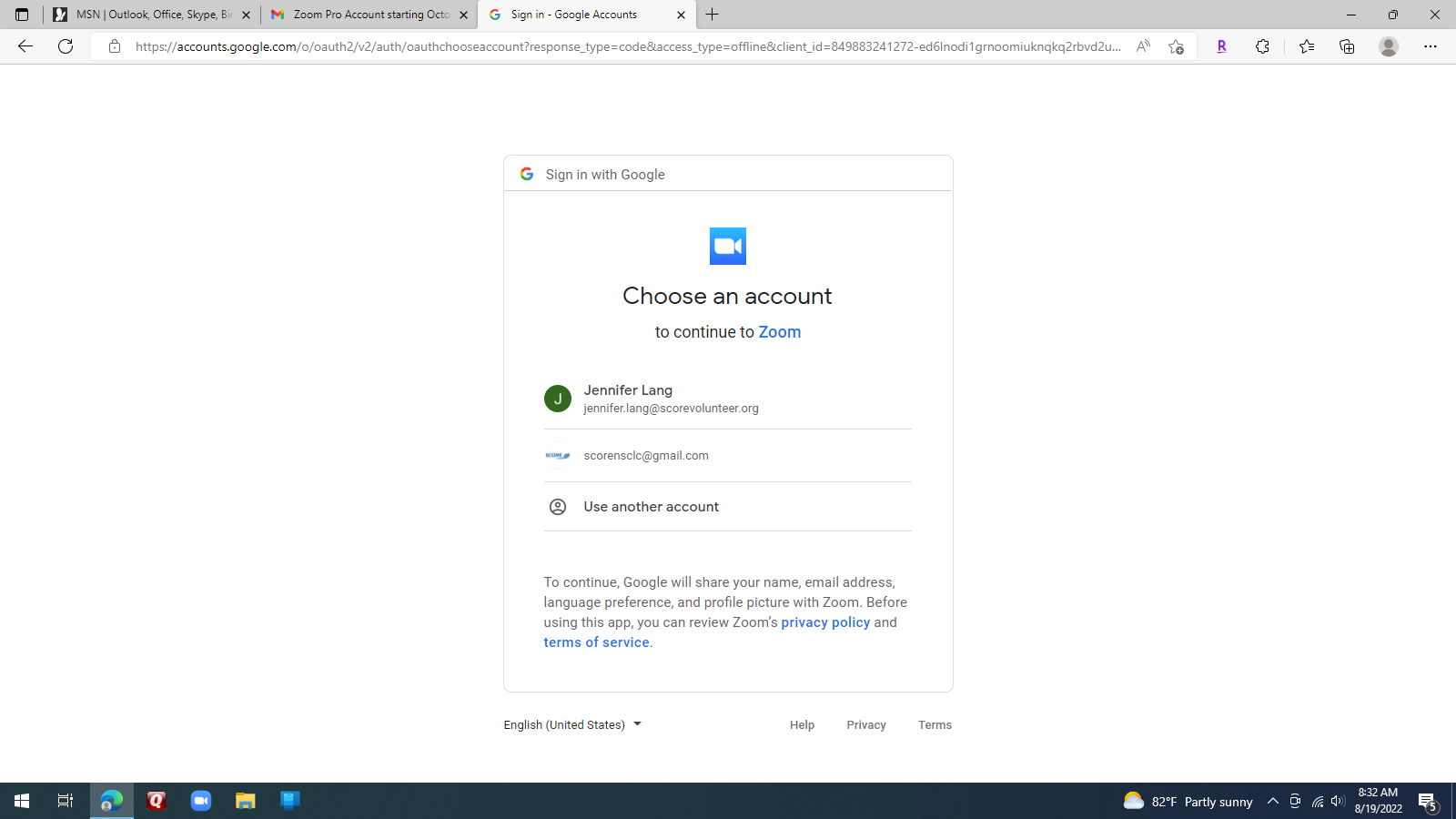
It will ask me if your SCORE email is how you want to sign in - click on that and it takes you to the schedule page of the Zoom account:
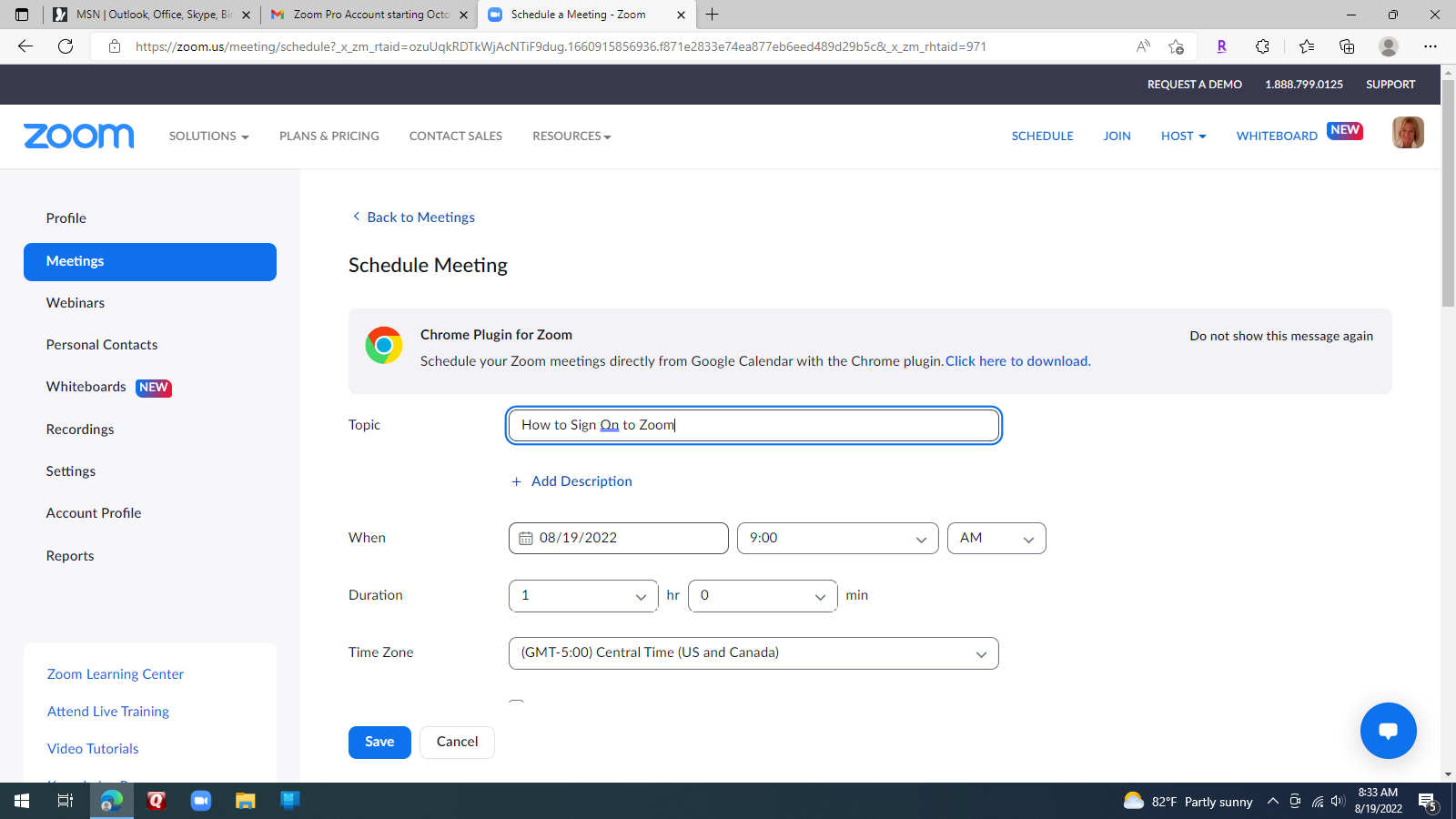
Once you schedule a meeting, click to "Save" it to your SCORE Google calendar.
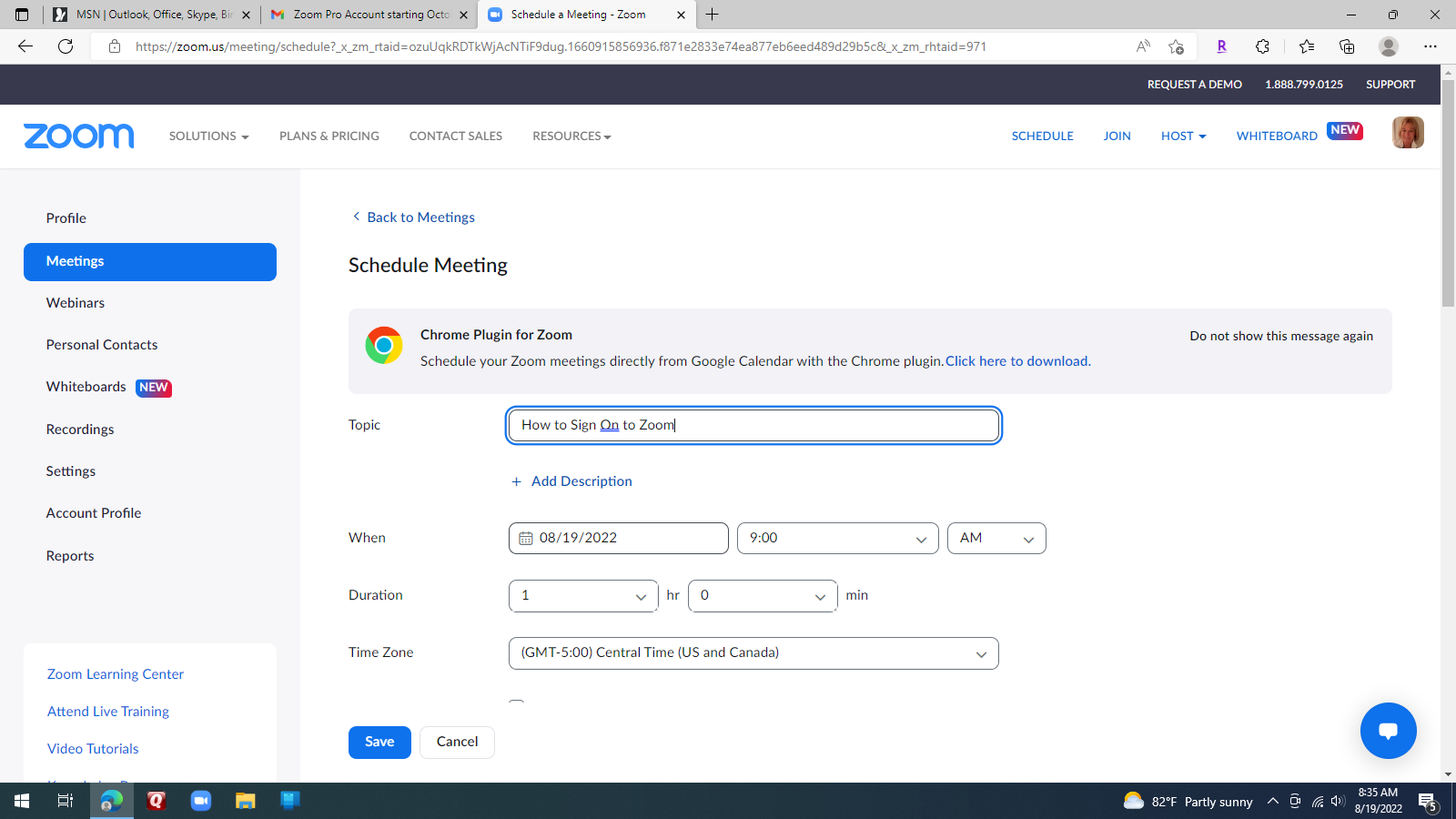
The SCORE Google calendar allows you to add email addresses of people you want to invite:
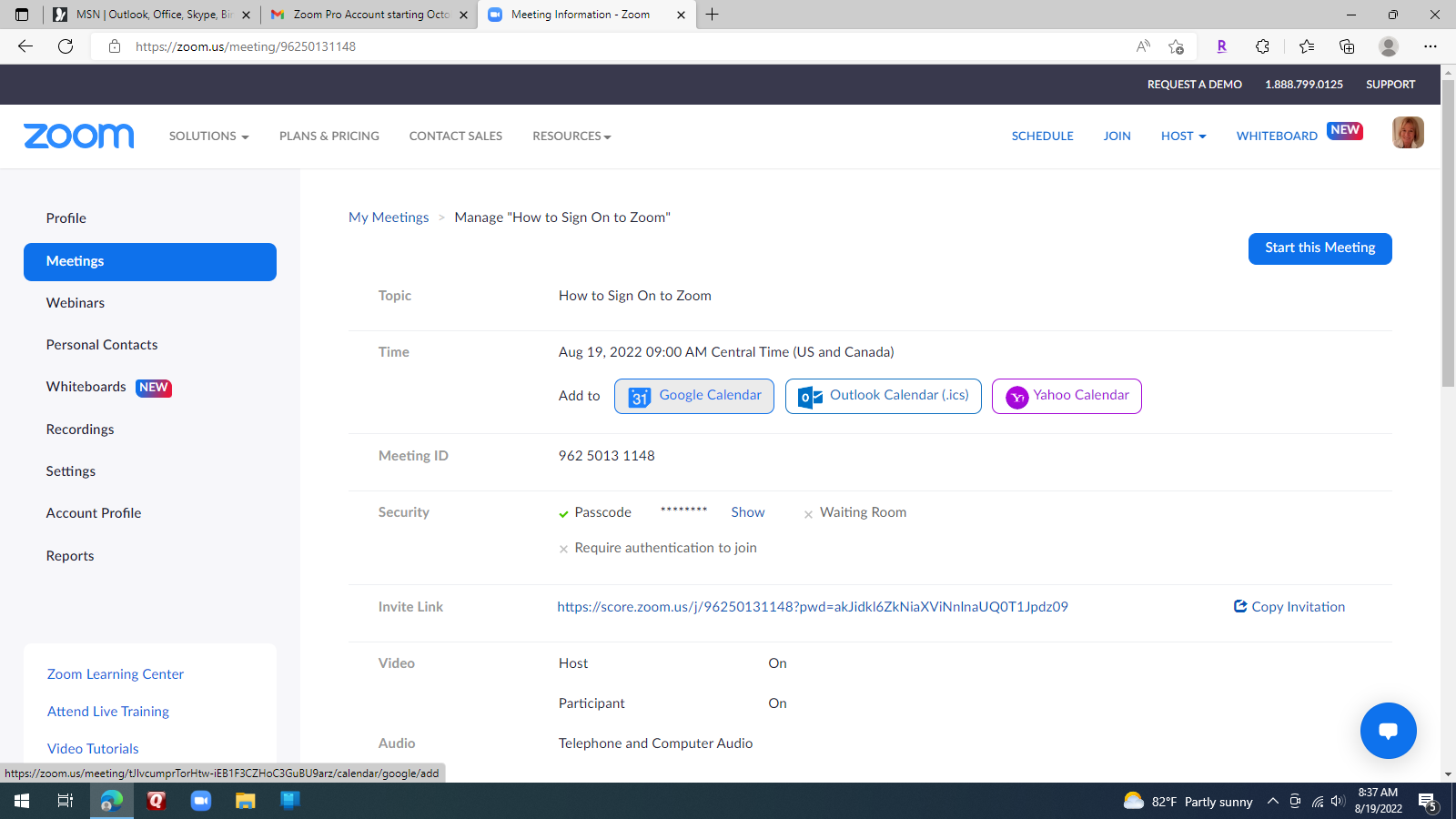
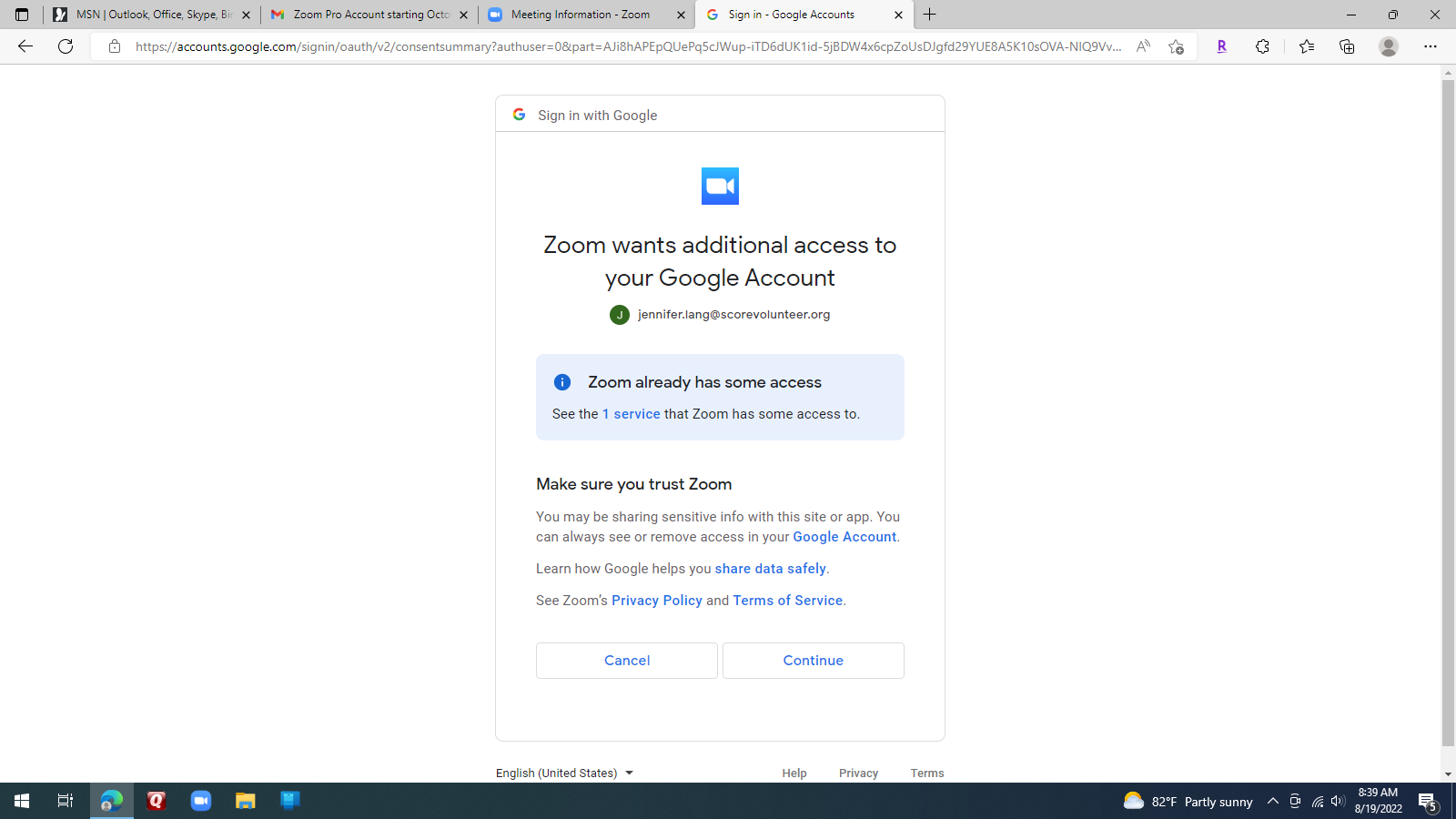
The Google calendar will also ask if you are signing in with your SCORE email address - click on that and you'll likely also get this verification page - click on "Continue":
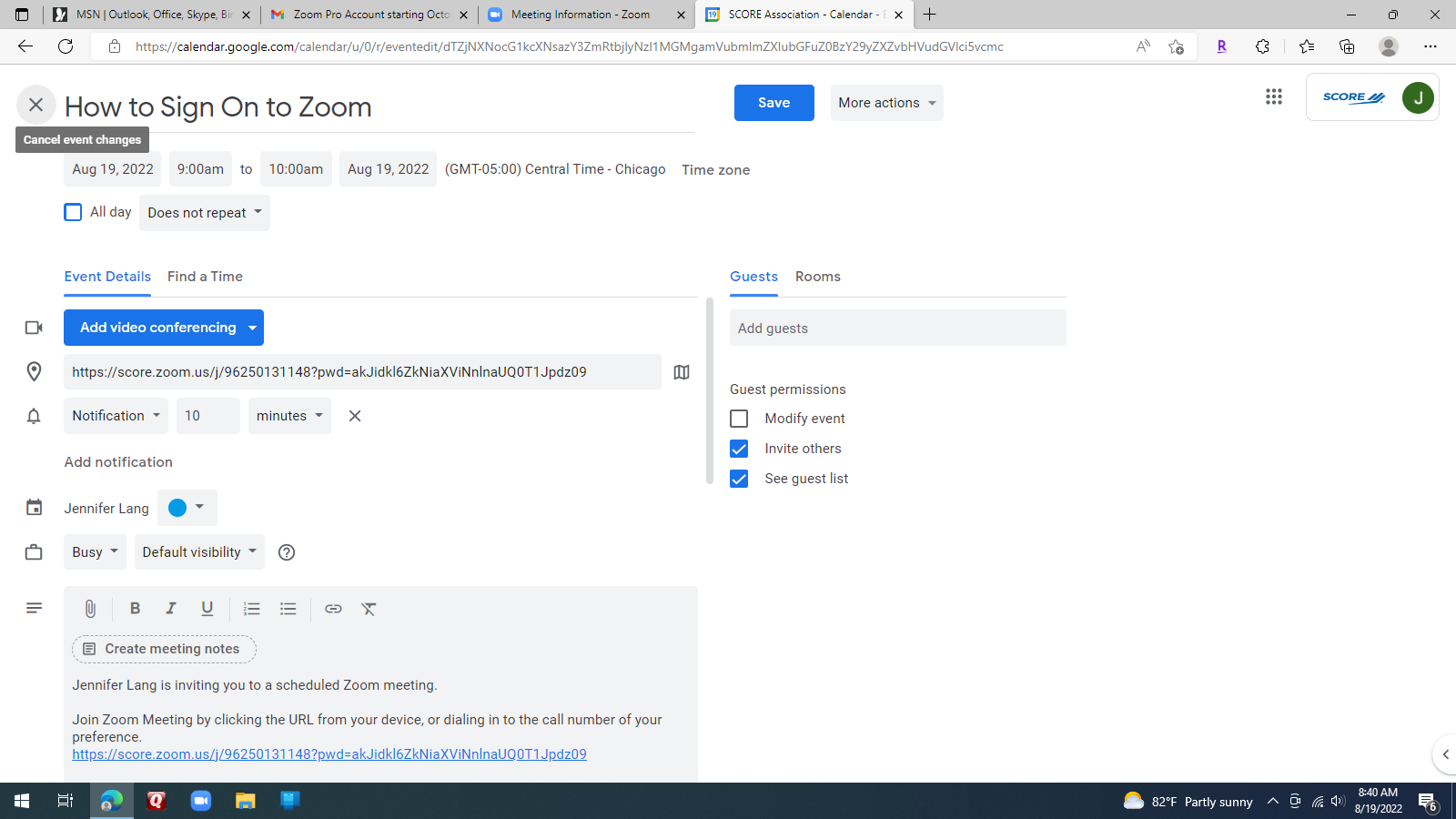
Important note - see that the invite is at the top of the invite info on the left side of the screen.
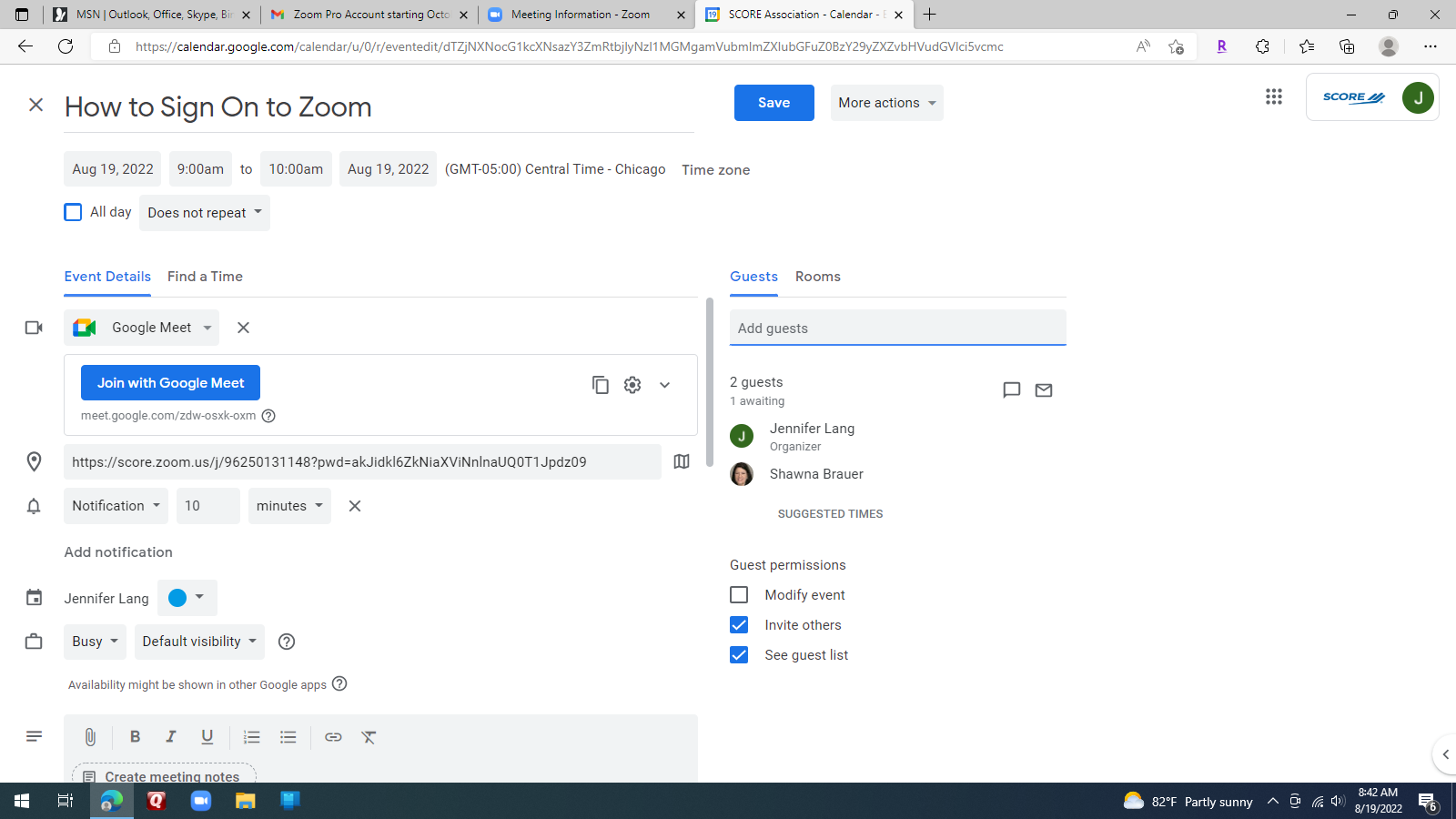
Once you invite someone, the Google calendar also adds a Google Meet link at the top of your invite!!!
You need to "x" that out, otherwise you end up on your Zoom link and potentially your invitee picks the Google Meet link . . .and you don't connect!
Now click "Save" on the calendar invite, it will ask you if you want to send the invitation(s).
Your invites will go from your SCORE email and the reply acceptances and declinations will come to you at your SCORE email. Going back to the Zoom website will be where you start meetings.
You may choose to alter the Zoom settings to allow invitees to join at any time and automatically have their cameras and microphones on but how you set that up is yours to decide.

