Manage Folders In Your @scorevolunteer.org Account

Feb 18, 2026
 0
0
Please view the steps below to create, remove, and edit folders within your scorevolunteer.org email account. Changes made to folders here will be displayed in your Inbox and CORE Email Tab.
Login to Gmail
- Go to https://www.gmail.com to login to your email account. Enter your username and password and click ‘Sign In.’
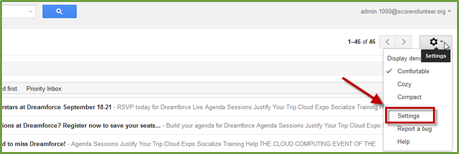
- Click the gear icon, located in the top right-hand corner of the email inbox, and select ‘Settings’ from the dropdown.
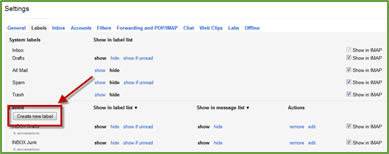
- From the Settings menu, select ‘Labels.’

Create A New Folder
- Click the button to ‘Create new label.
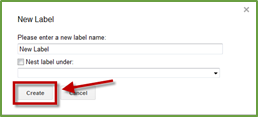
- Enter the name of the new folder, select the folder you would like to place this new item under, if applicable, and click ‘Create.’
Remove An Existing Folder
- Find the folder you would like to delete and under Actions, click ‘Remove.’

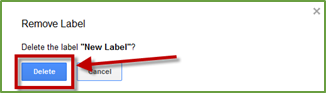
- Confirm the folder’s deletion by clicking ‘Delete.’
Edit An Existing Folder
- Find the folder you would like to edit and under Actions, click ‘Edit.’

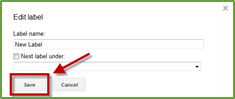
- Edit the folder’s name or select the folder you would like to place this item under. Once you have finished editing, click ‘Save.’