


Thank you to Sally Broff, SCORE San Diego Chapter Chair, for creating and sharing this guide!
If you would like to send an email to several recipients but have each one receive an individual email, use Multi-Send Mode. Sign on to your SVO Google account and open your Gmail from the browser.
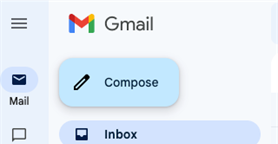
Click Compose at the top left of the page.
Enter your list of recipients in the To: bar.
You may include as many as you wish.
There is one caveat- if you enter an email address in the cc: field, you will get a separate copy for each recipient.
Now type in your subject line and the body of the email.
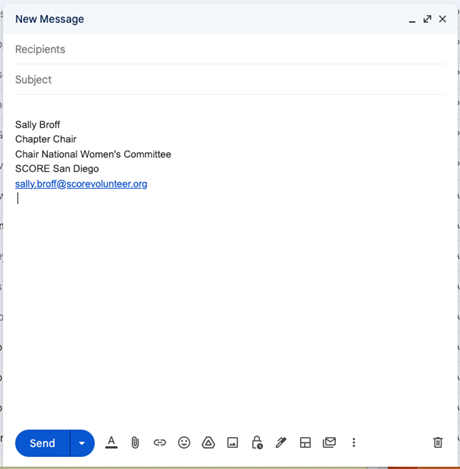
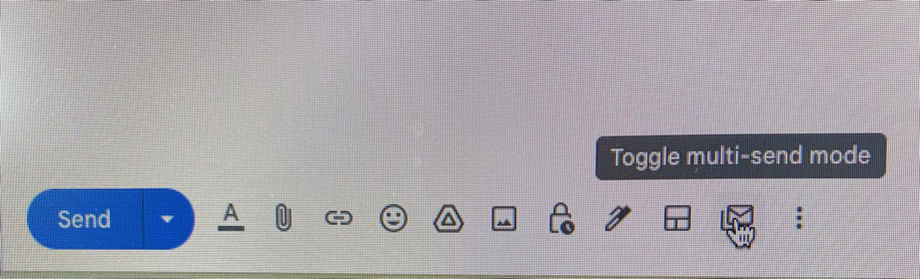
Go to the bottom of the draft and hover your pointer over the envelope icon until it says Toggle multi-send mode. Click the icon.
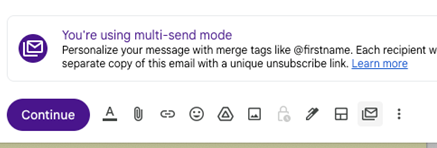
You will see this message: You’re using multi-send mode.
Click Continue and follow the instructions. It will offer to send a preview or send all. If you want a copy, send a preview first. Then send and your list will all get individual emails!
Tips
If you want to email a list of email addresses from a column of a spreadsheet, select the data in the column, copy it, and paste directly onto the Recipient line of your email. The same works for any column of email addresses.

