



 0
0
Update: As of May 1, 2025, Google Workspace will no longer support LSA (Less Secure Apps).
To prepare for this change, please download the Google Mail app on your mobile device -
Android, iPhone/iPad, OR Sign in to Google directly on your computer.
----------------------------------------------------------------------------------------------------------------
If you're using an email client that accesses your Google Account with only a username and password, upgrade to the latest version of your existing email client, use Sign in with Google, or set up your client to use IMAP with OAuth.
Enable Less Secure Apps (Required)
Click this link myaccount.google.com/lesssecureapps and select "ON" to enable less secure apps while in Gmail.

Outlook
Then follow these steps:
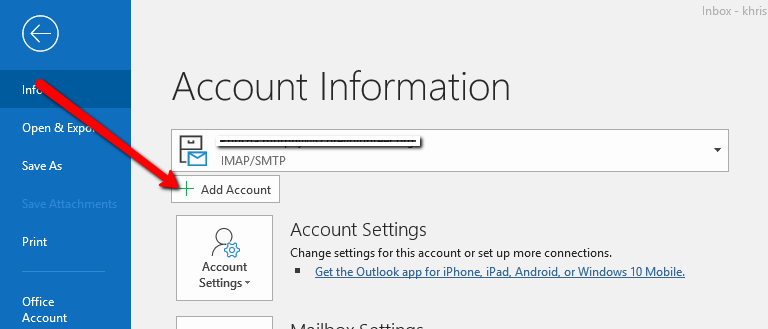
- Open Outlook and select File.
- Click the Add Account button on the Account Information page.
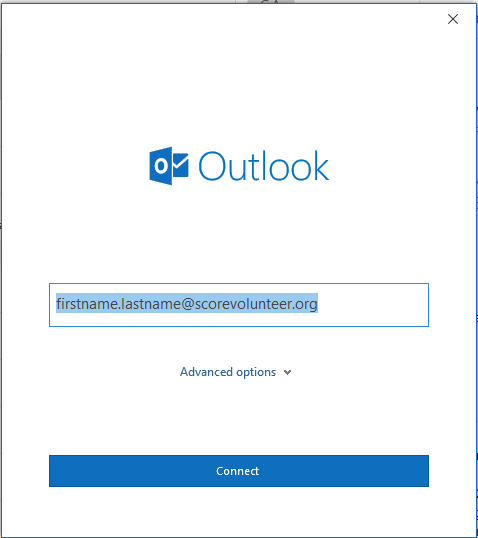
- Enter your SCORE Email and click Connect.
- Enter your SCORE Email password then click OK and then click Finish. Your SCORE Email should now be connected in Outlook.
Relevant Resources:
- Supported Systems and Applications
- Authenticate an IMAP, POP, or SMTP Using OAuth
- SVO (@scorevolunteer.org) Email Help

