



 0
0
Audience: All @scorevolunteer.org accounts
Introduction
We understand that an email went out to all our @scorevolunteer.org users regarding turning on the 2-step verification. Please note that we do not expect to be enforcing this at this time even though it is a security best practice.
For those interested to do this right now, this guide has the information on why turning on the 2-Step Verification feature is beneficial to you. Also included below are the steps on how to turn on/enroll your account for this feature.
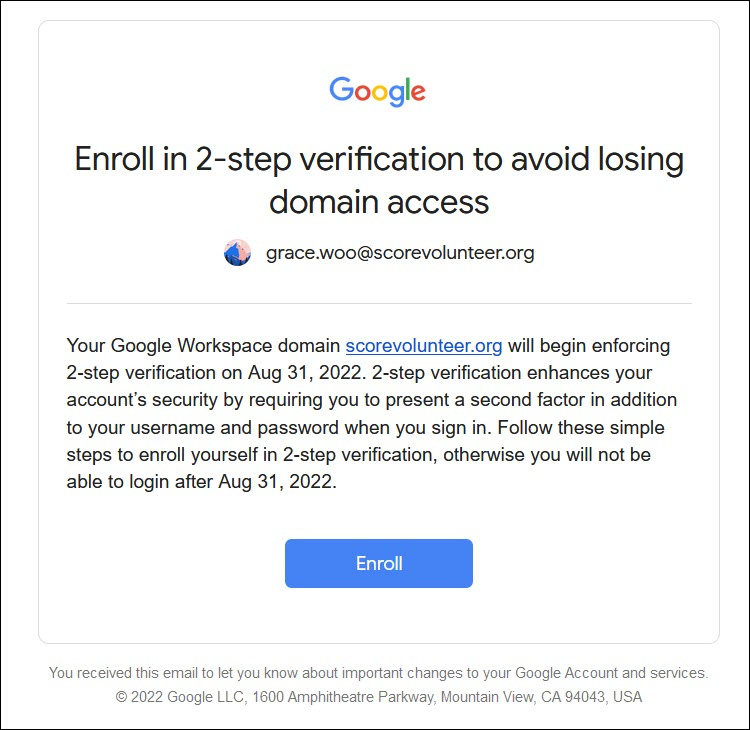
Table of Contents
- Why turn on the 2-step Verification?
- How to turn on 2-step Verification
- How to turn off 2-step Verification
- External Resources in Troubleshooting Login Challenges
________________________________________________________________________________________________________
Why turn on the 2-step Verification?
The 2-step Verification feature allows users to access their Google Workspace account with an additional layer of security to neutralize risks from compromising passwords. This is essential in protecting your accounts because when your password is hacked, a malicious intruder could steal your data e.g. information in your email, contacts, calendar, etc.
How to turn on 2-step Verification?
Enroll from the Email Message Received
Recording of the Steps:
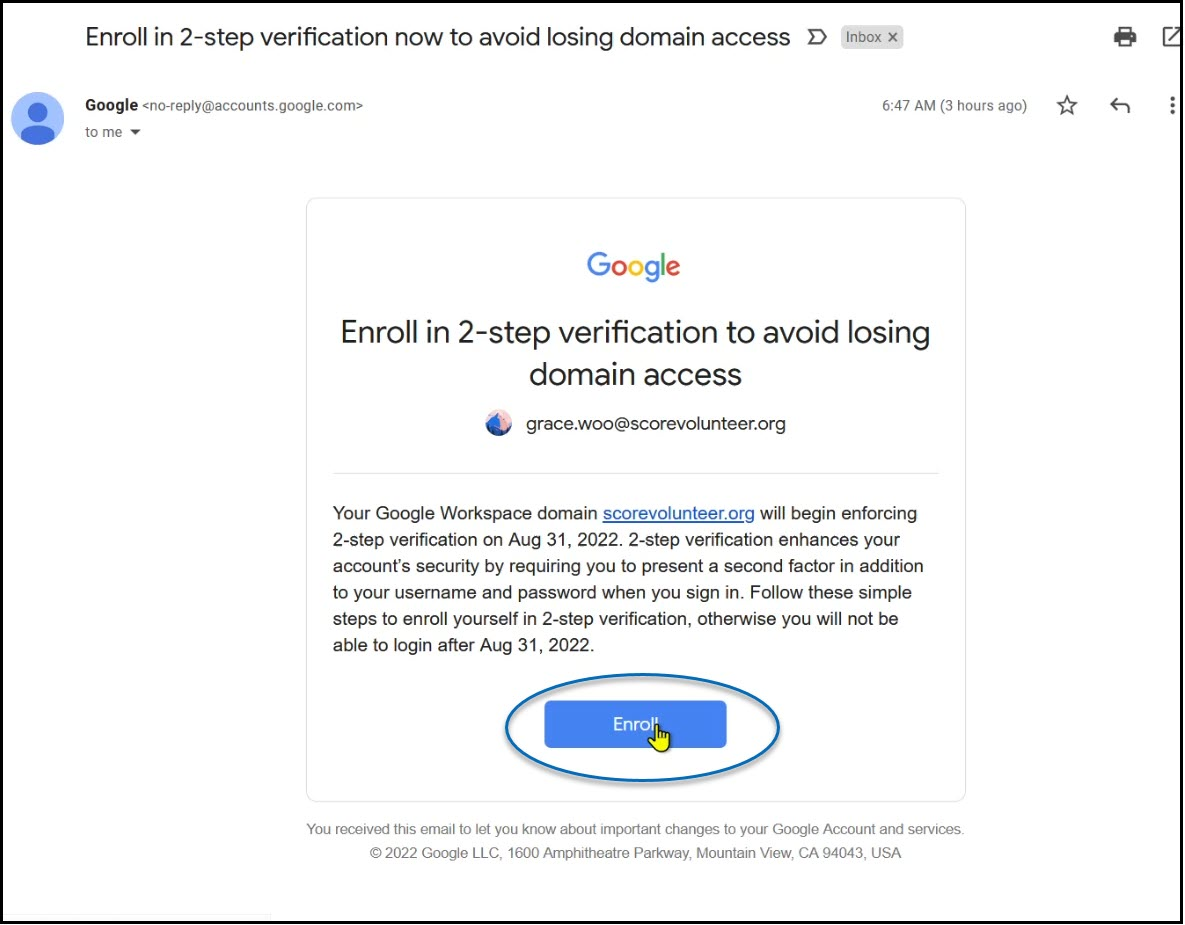
1) Open the email message from Google regarding turning on the 2-step verification and click Enroll.
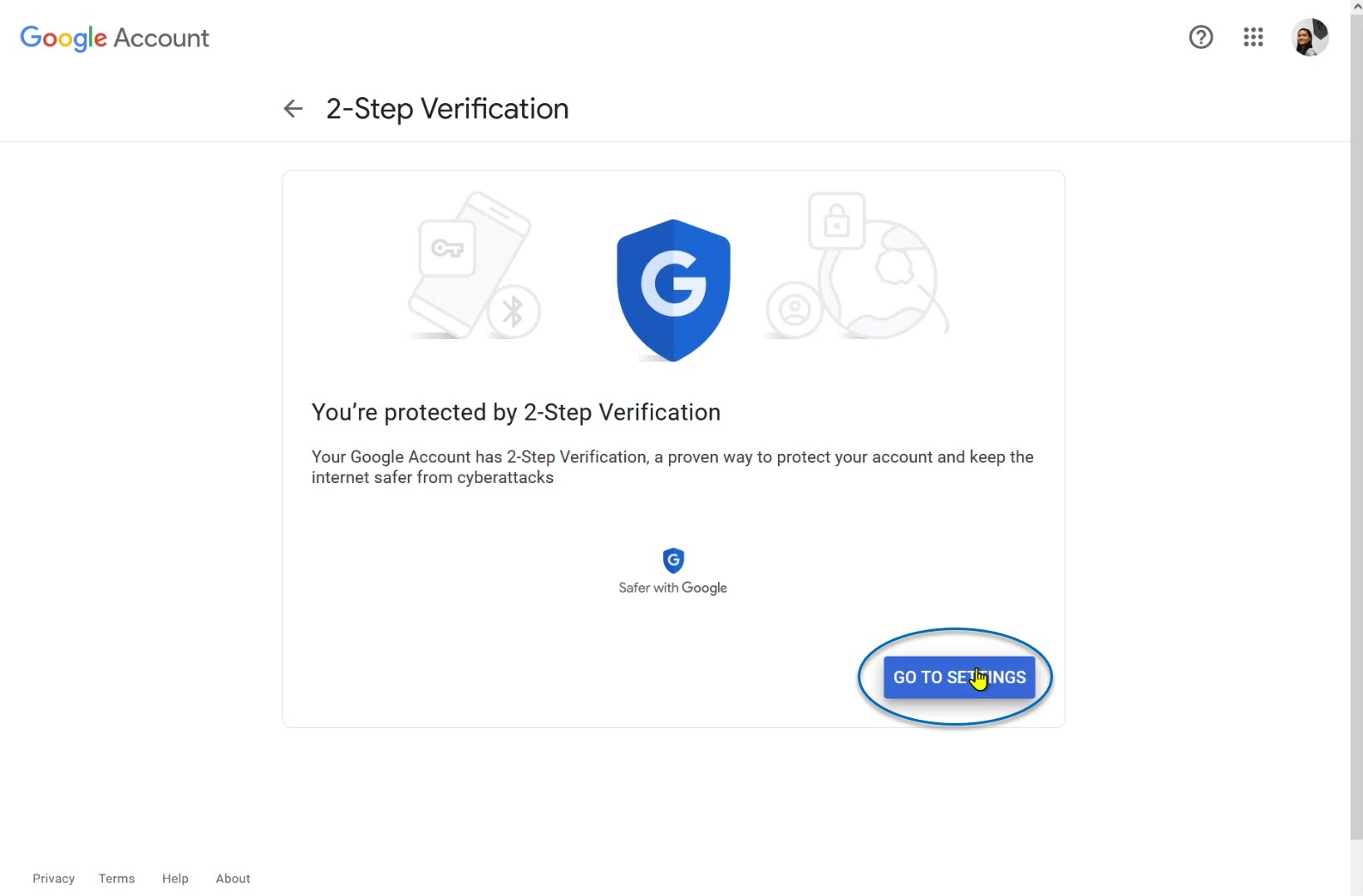
2) Click Go to Settings when prompted.
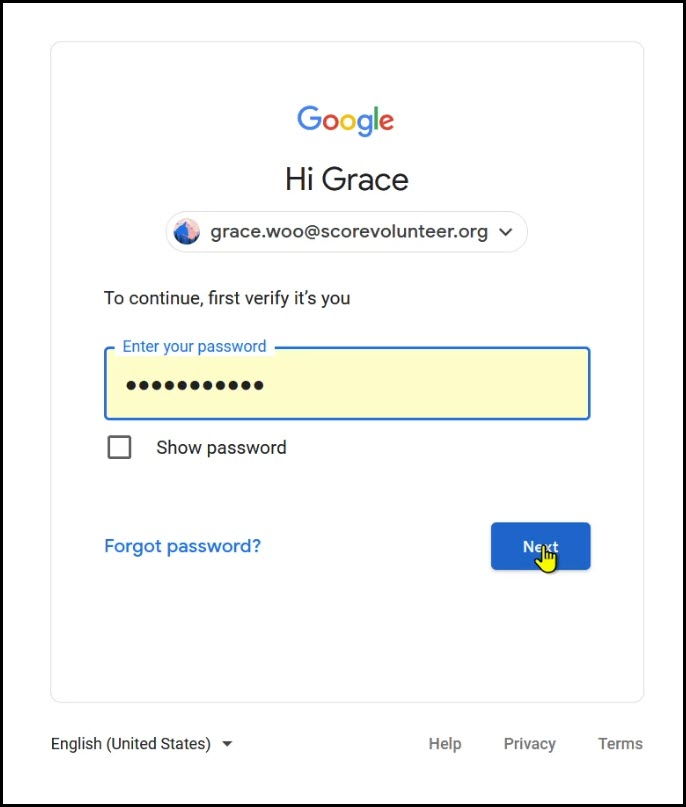
3) Confirm your Username and Password on the next page and click Next.
4) Enter your phone number on the field provided and click Next.
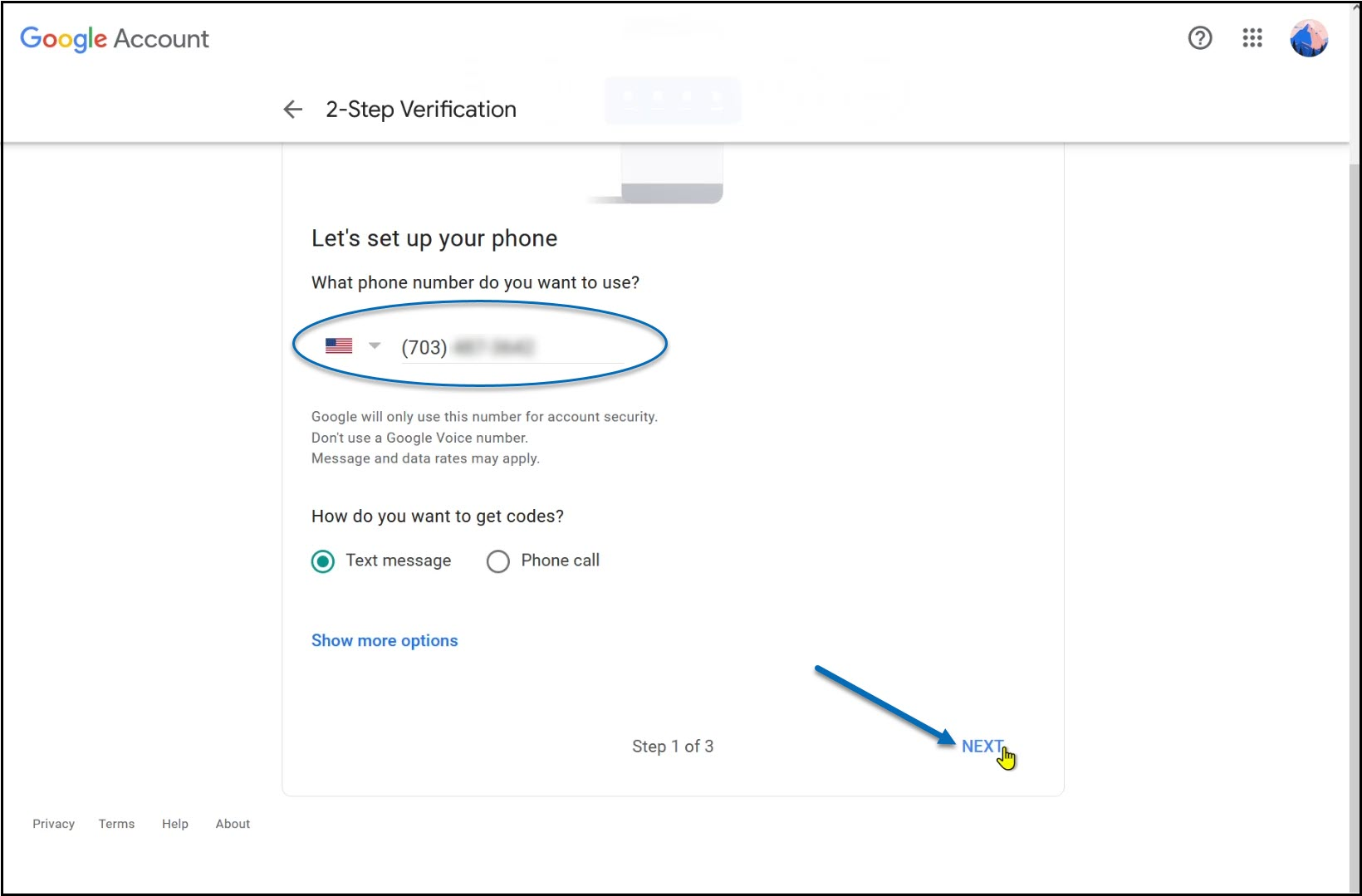
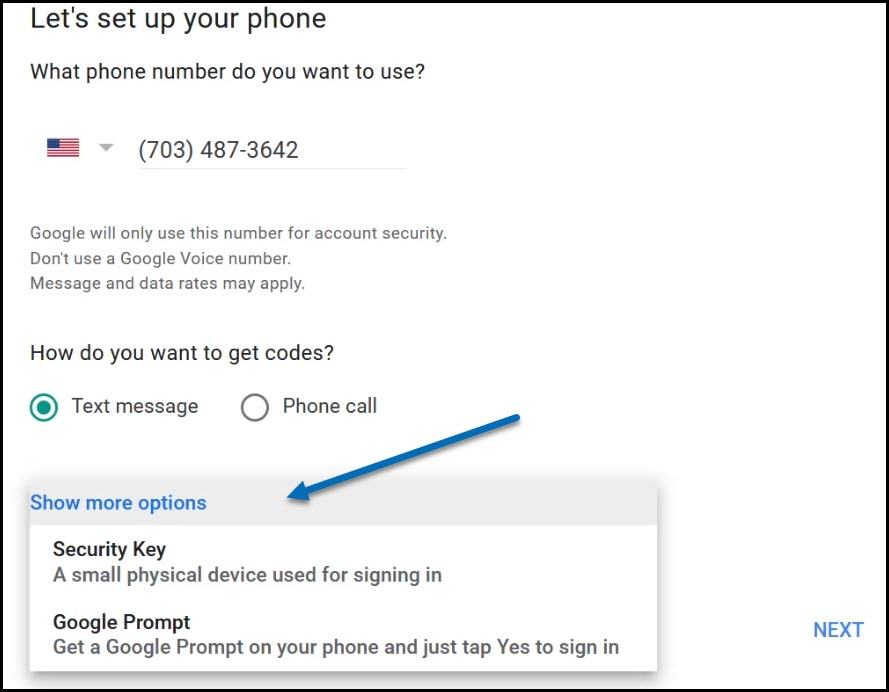
Note: Other options are provided if you do not want to prefer a text message or a phone call.
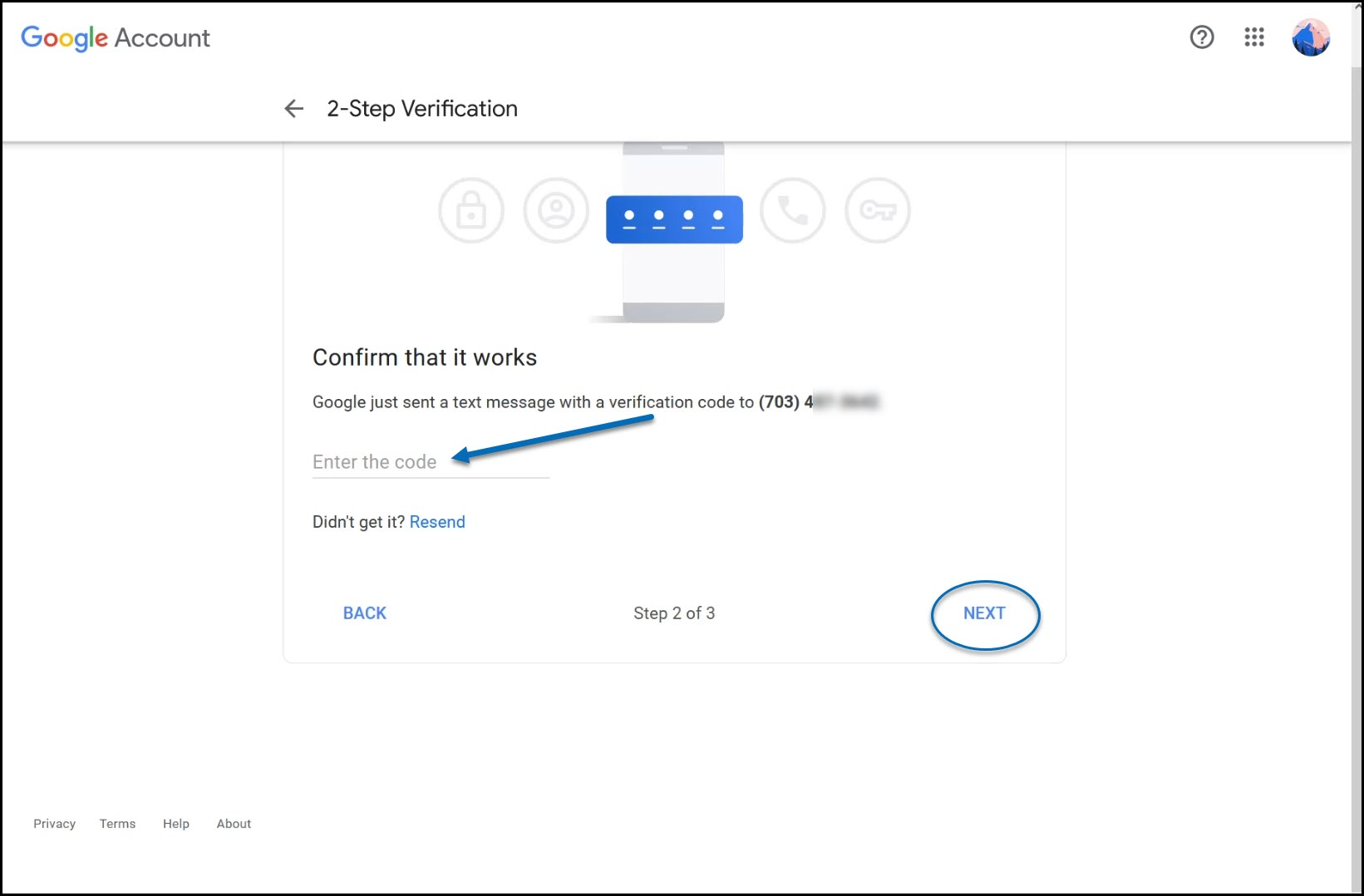
5) Enter the Code provided to you and click Next.
6) Confirm to turn on the feature by clicking Turn On.
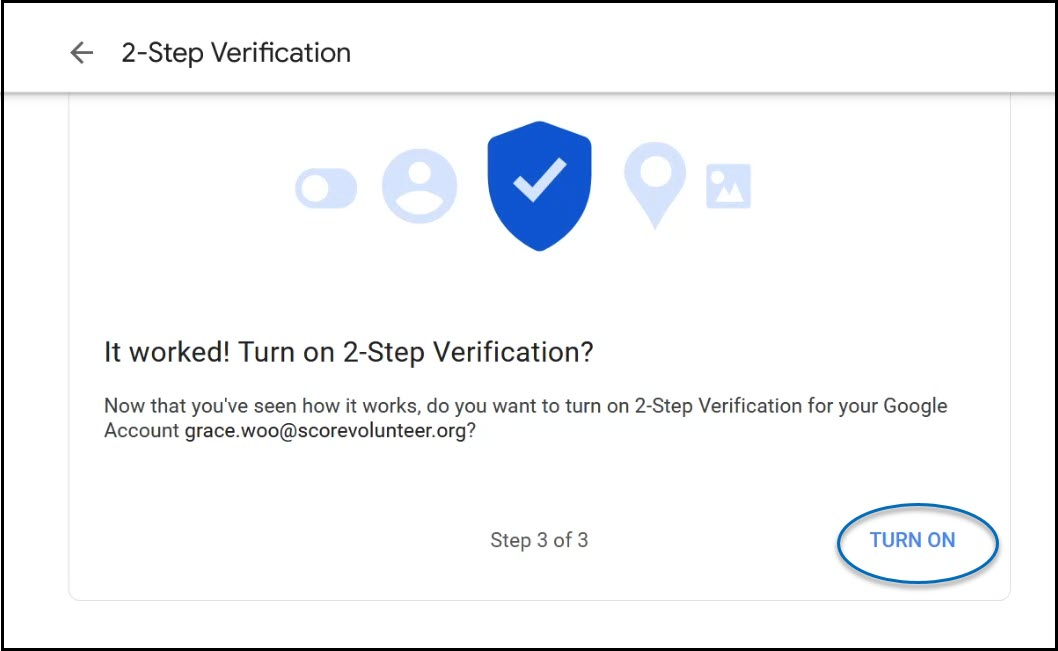
And this completes the steps in enrolling your account in the 2-step Verification. Thank you for complying!
How to Turn off the 2-step Verification
1) Open your Google Account.
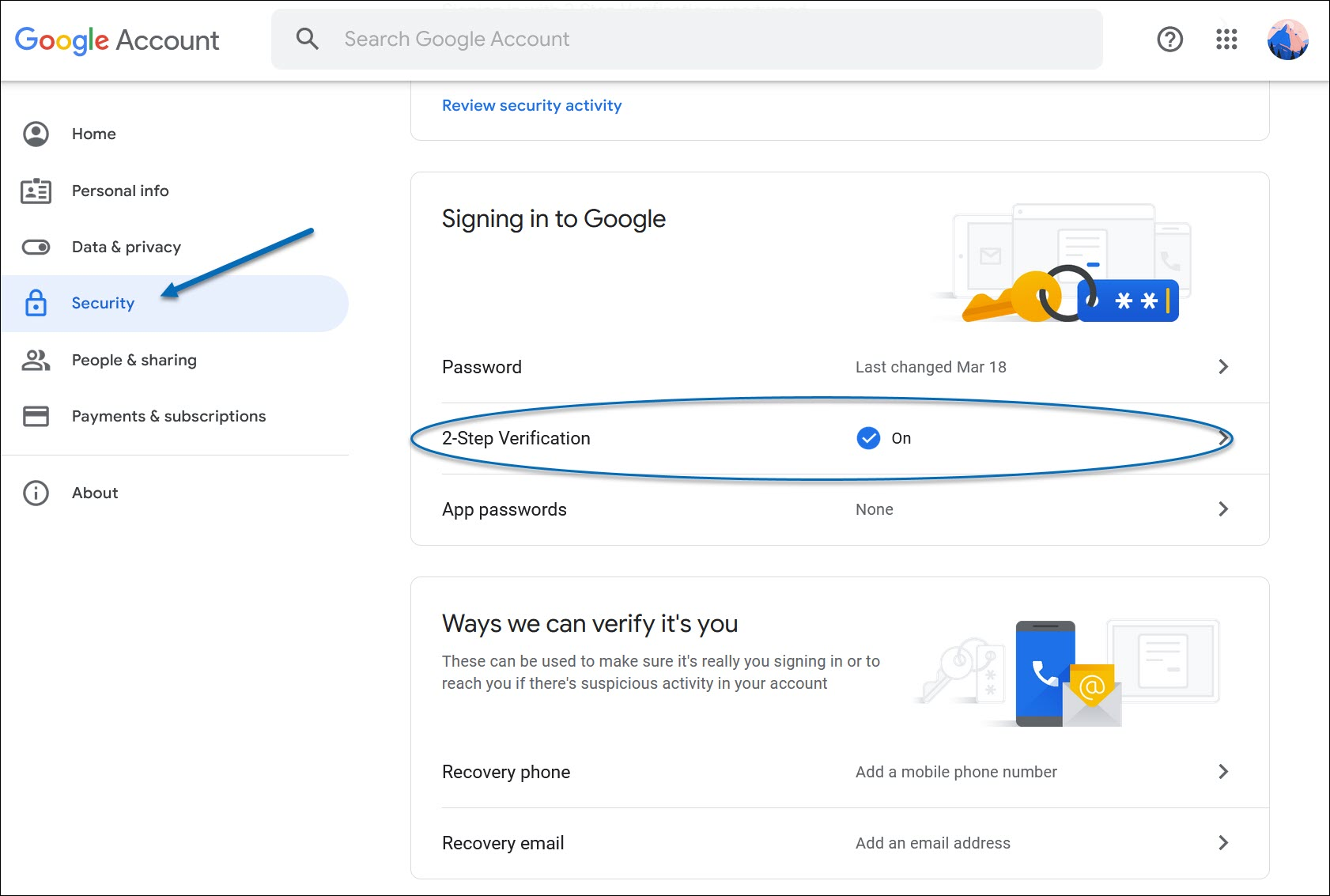
2) In the navigation panel, select Security.
3) Under “Signing in to Google,” click where it says 2-Step Verification - On.
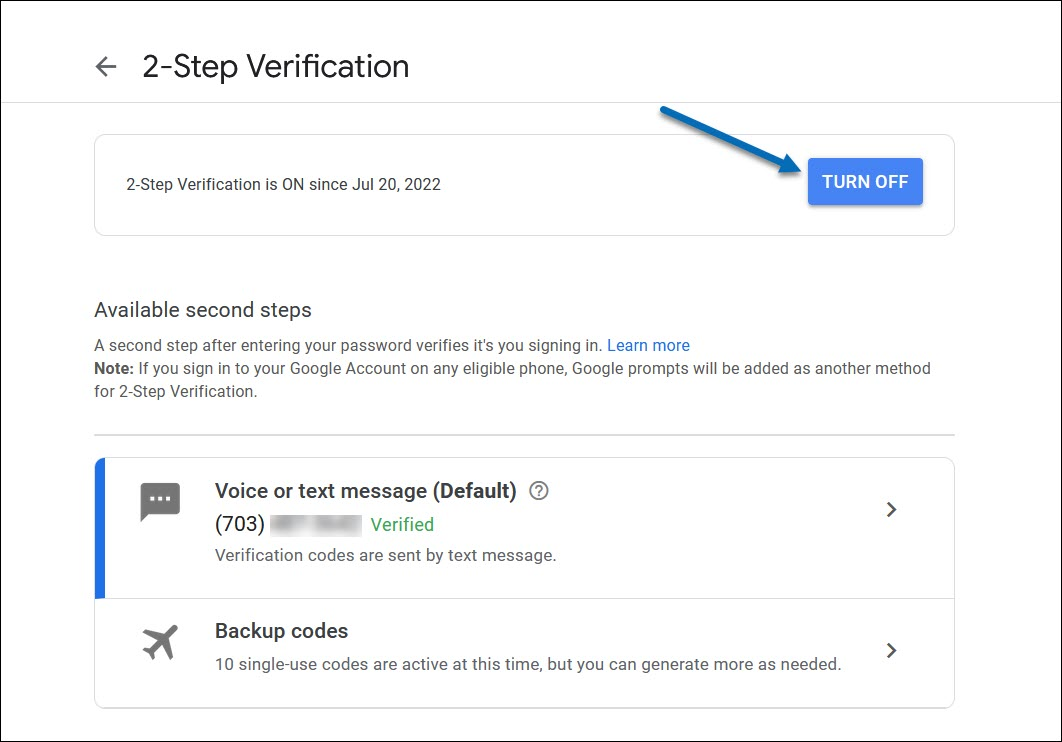
4) In the next page, click the Turn Off button.
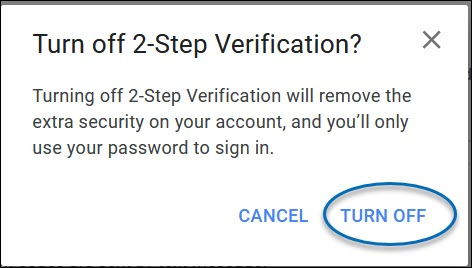
5) Confirm your selection by clicking Turn Off again. This completes turning off the 2-Step Verification feature in your account.
Relevant Resources:

