How To: Add a Note (to the Mentor Request Case)

Feb 02, 2026
 0
0
Audience: Client Intake Coordinators, Mentors
The add-a-note feature in our system allows you to keep the information internal. The note is only visible on the page where it is saved. Here are some situations that you may want to add a note to a case:
- No interaction with the client:
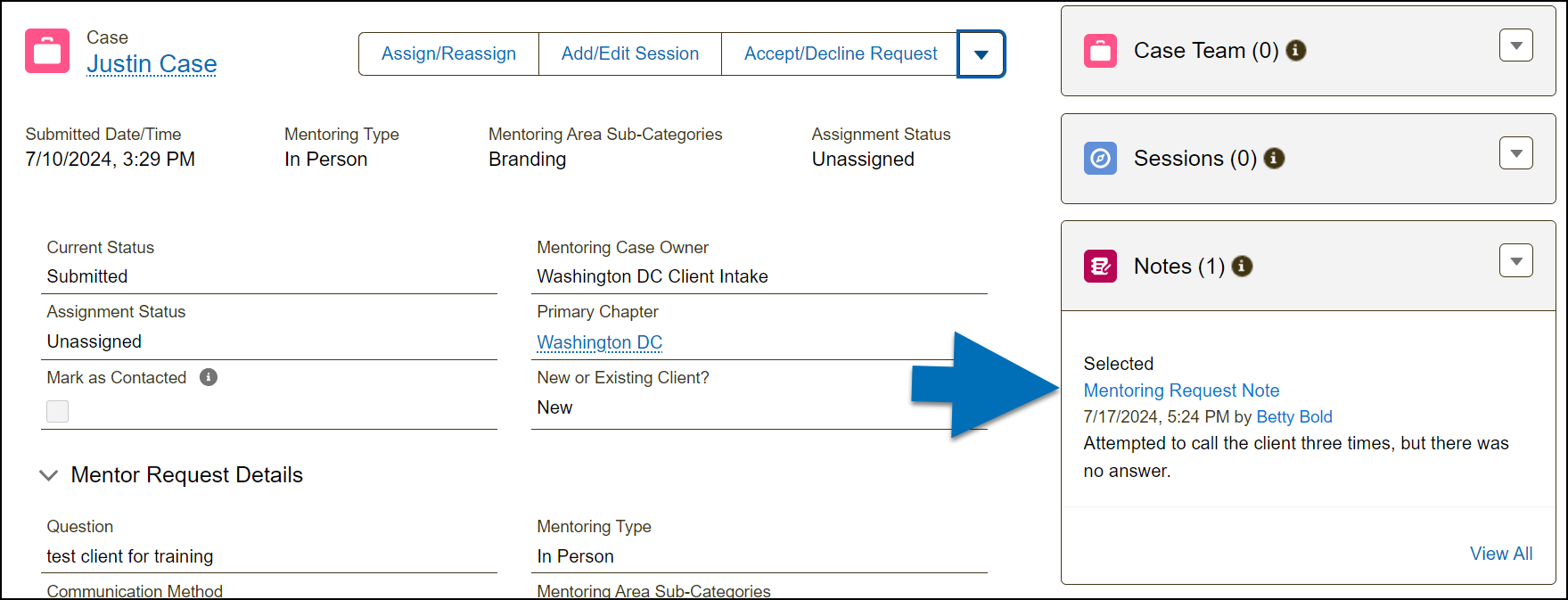
- Example: "Attempted to call the client three times, but there was no answer."
- Track non-mentoring interaction:
- Example: "CIC has already contacted the client and scheduled a meeting with the assigned mentor."
- Keep Team members updated:
- Example: "Client has been connected to a social media expert."
- Provisional can enter their non-mentoring session notes:
- Example: "As a co-mentor for this session, I'd like to add that..."
To Add a Note, please follow the steps below.
Starting Point: Mentoring Request Case page
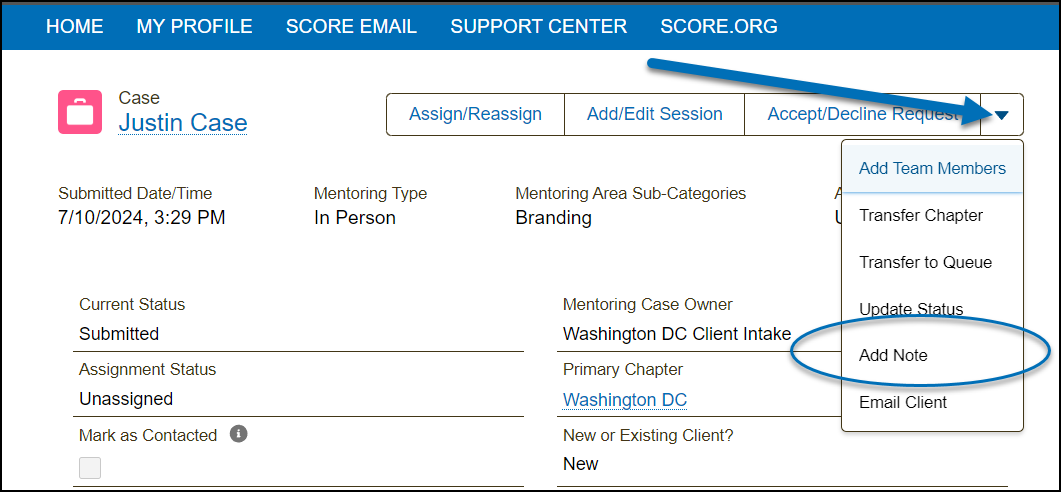
1) In the Mentoring Request Case, click the drop-down arrow  then select "Add Note" from the drop-down list.
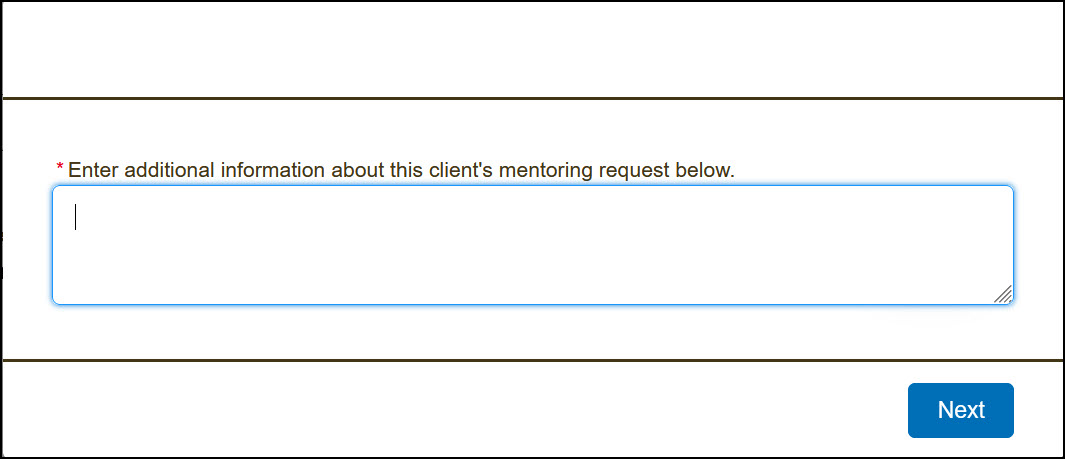
2) Add a note to this client request, then click "Next".
3) The page will refresh; you can view your notes in the "Notes" related list.