


Export
1 - Log into Constant Contact account
2 - Click on Contacts

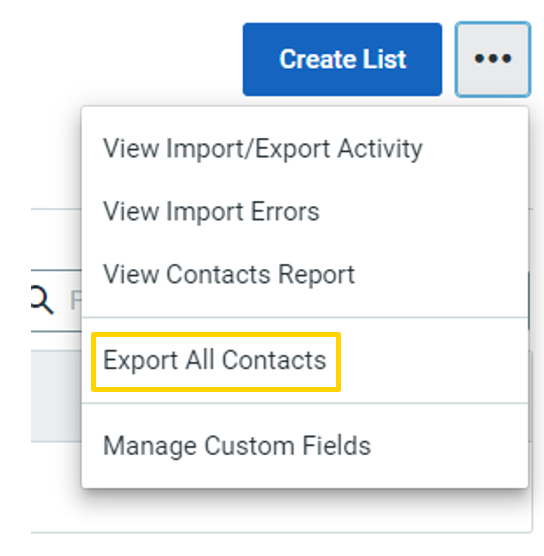
3 - Click the three dots for more

4 - Select to Export All Contacts
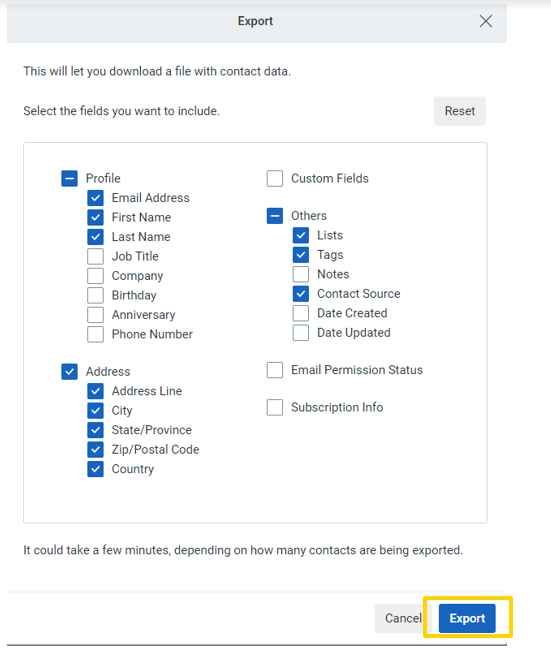
5 - Select the appropriate fields you would like to bring over. For example: Email Address, First Name, Last Name, Job Title, Company, Phone Number, Address Line, City, State/Province, Zip/Postal Code, Country, Lists, Tags, Contact Source
6 - Click Export
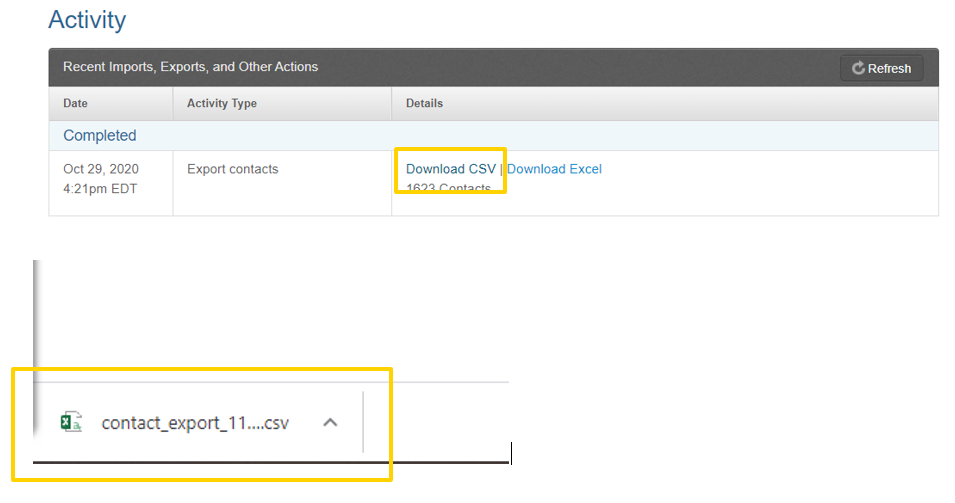
7 - Click View Progress

8 – Download file and save it to your computer
Import
1 - Log into Constant Contact account
2 - Click on Contacts

3 - Click Contacts in the submenu

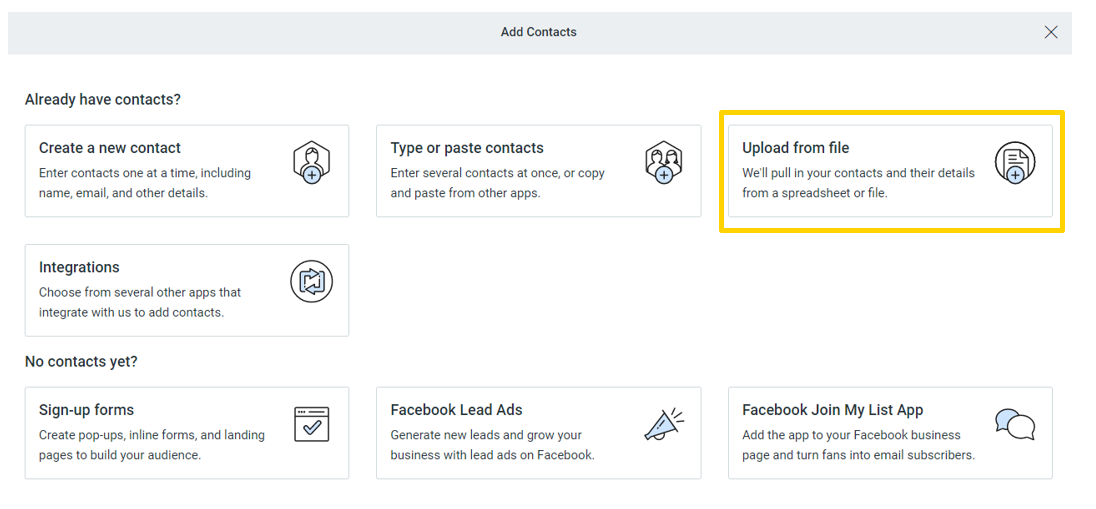
4 - Click Add Contacts

5 - Select Upload from file
6 - Upload the file
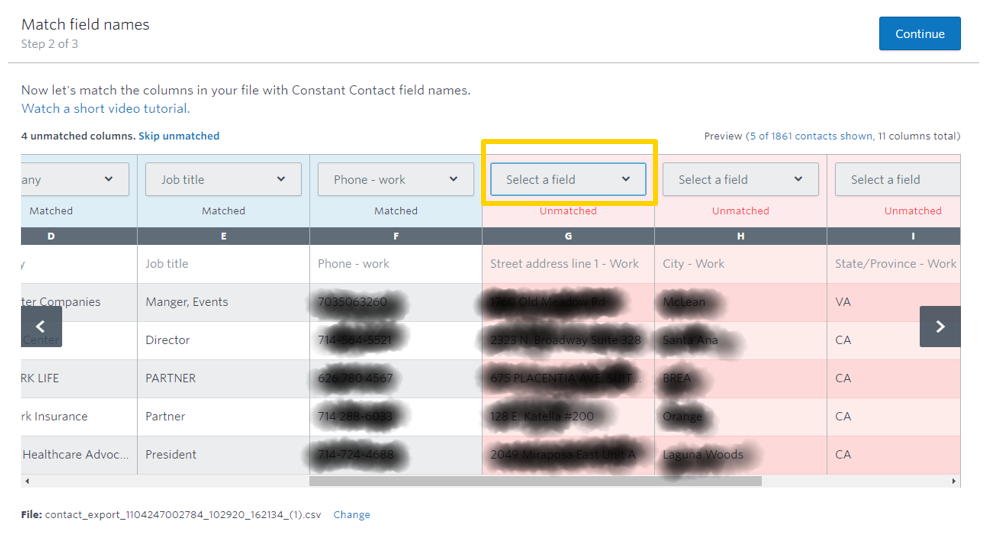
7 – Map the columns: Make sure all of the columns matched up properly and fix the ones that didn’t.
(Details blurred out for privacy)
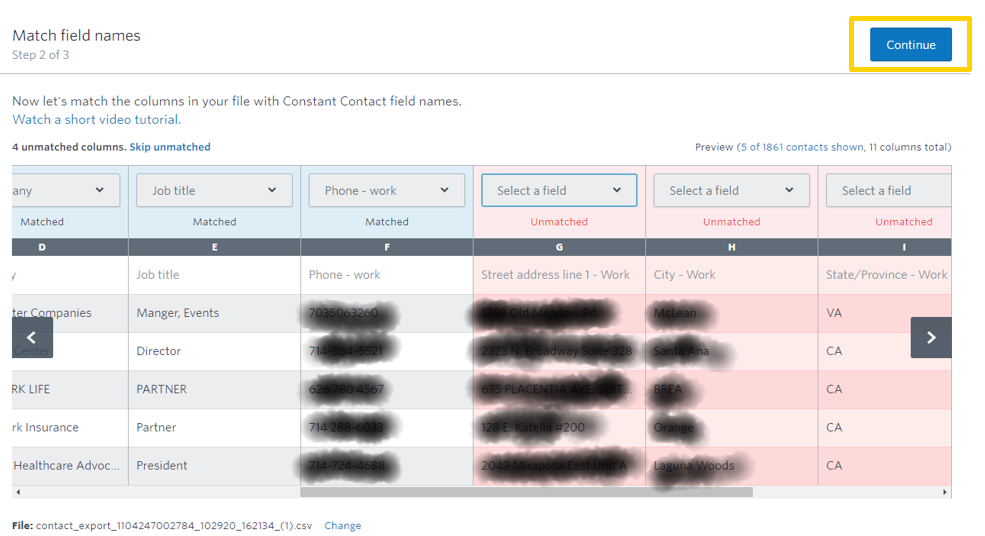
8 - Click Continue
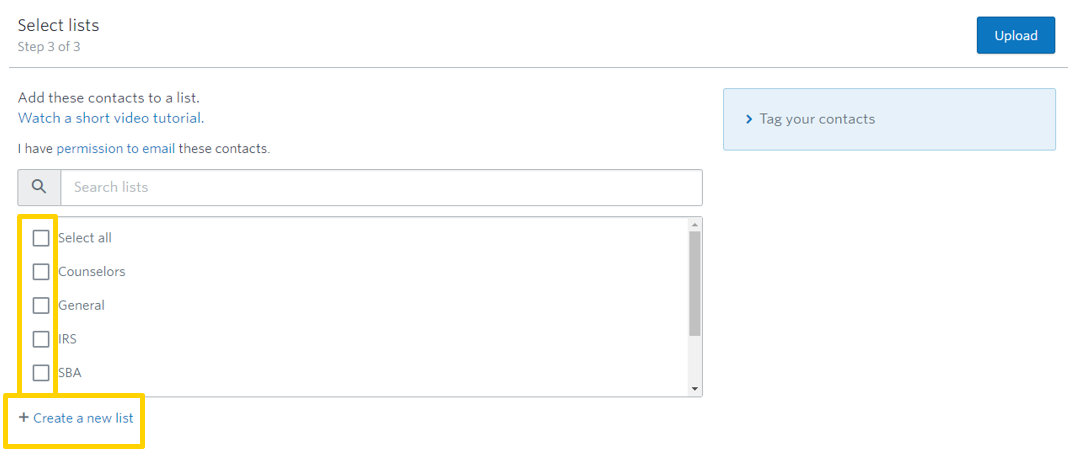
9 – Select a list you would like to upload them to. If you do not already have a list created, you can create one. You cannot upload the contacts without selecting at least one list.
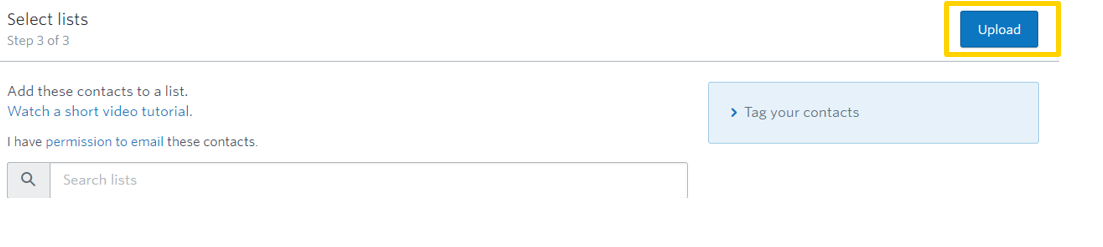
10 - Click Upload
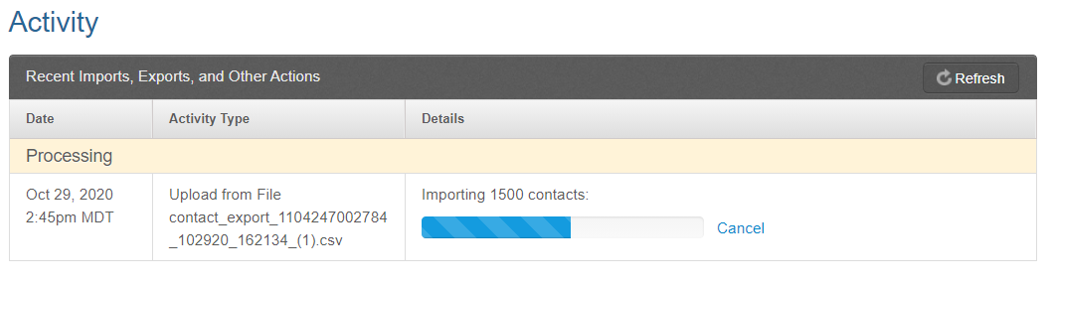
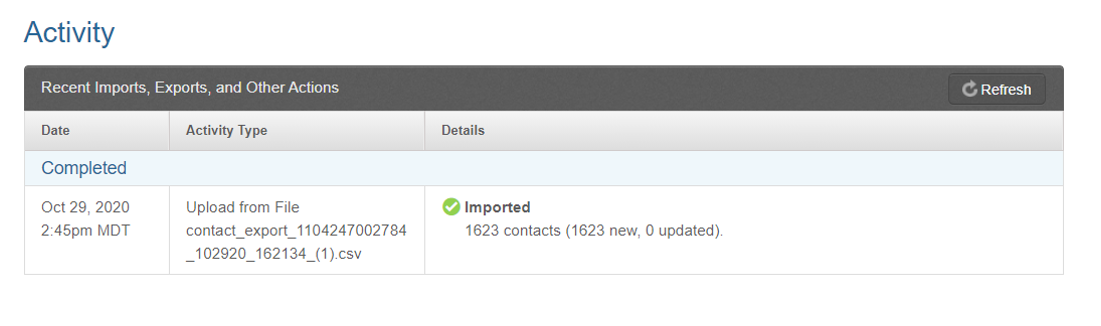
11 - Wait for contacts to load. You will see the status bar say “Imported” when it is complete
12 - Go back into your contacts to double check that they are there

