



 0
0
Audience: Regional Volunteer Intake Coordinators (RVIC)
This guide explains how to pause, withdraw, or reject volunteer applications in Engage. These actions help manage the onboarding process when a volunteer is unresponsive, no longer interested, or does not meet basic requirements, without deleting their record or losing history.
How to Pause Volunteer Onboarding
- From the Engage homepage, select Applications by Status
- Click View next to the appropriate application.
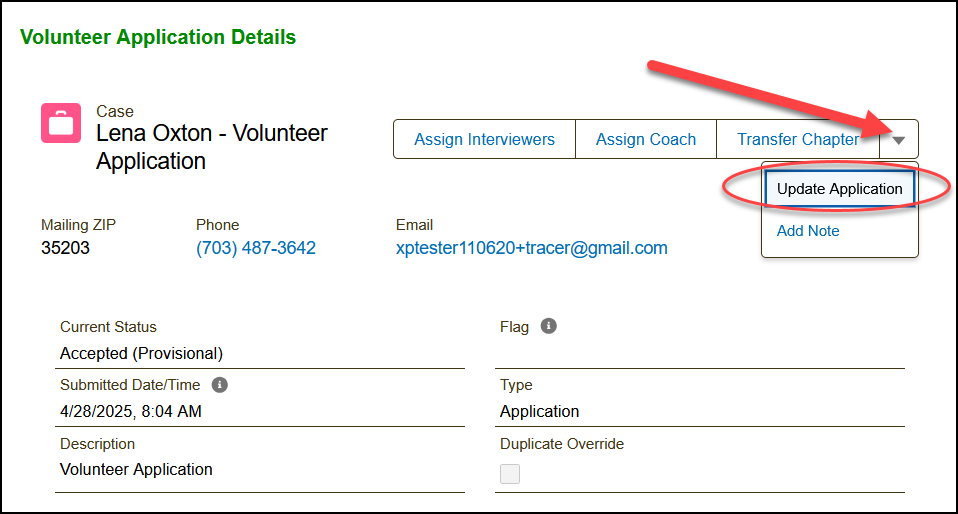
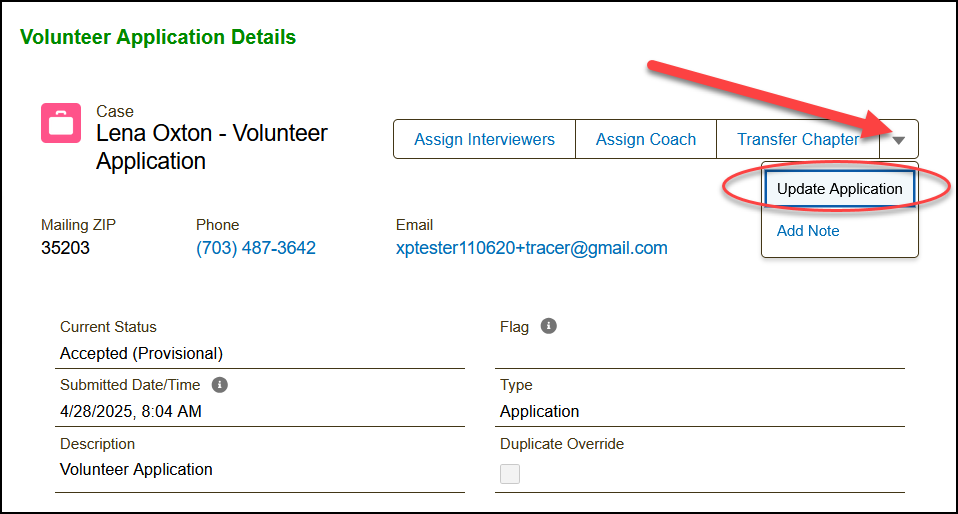
- Then, on the application, click the drop-down arrow (located at the top of the record) and select Update Application.
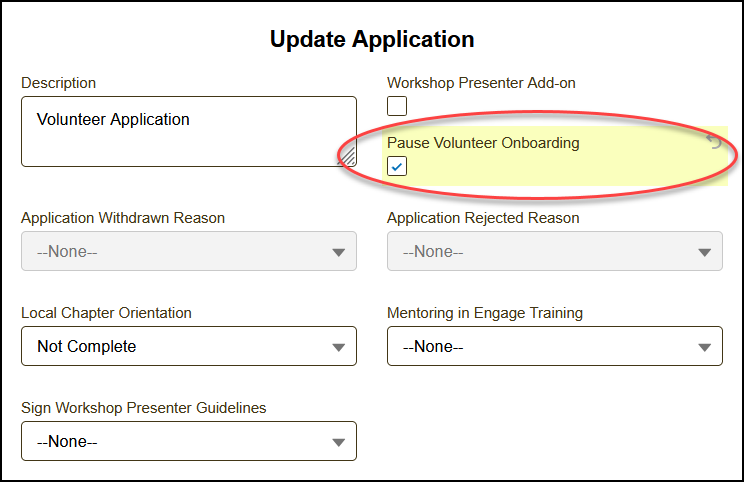
- Check the box for Pause Volunteer Onboarding.
- Click Next to save the changes.
What Happens Next
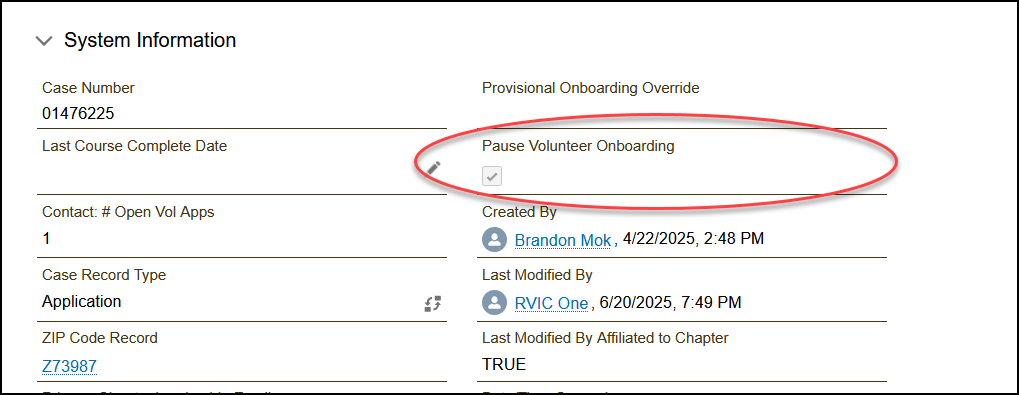
Application Status is Updated: In the System Information section at the bottom of the application record, the Pause Volunteer Onboarding checkbox will appear as checked. This confirms that the application is on hold.
Viewing Paused an Application
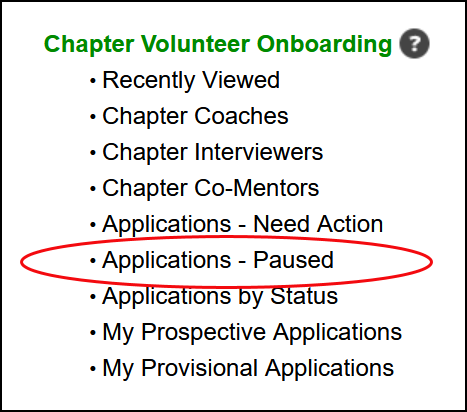
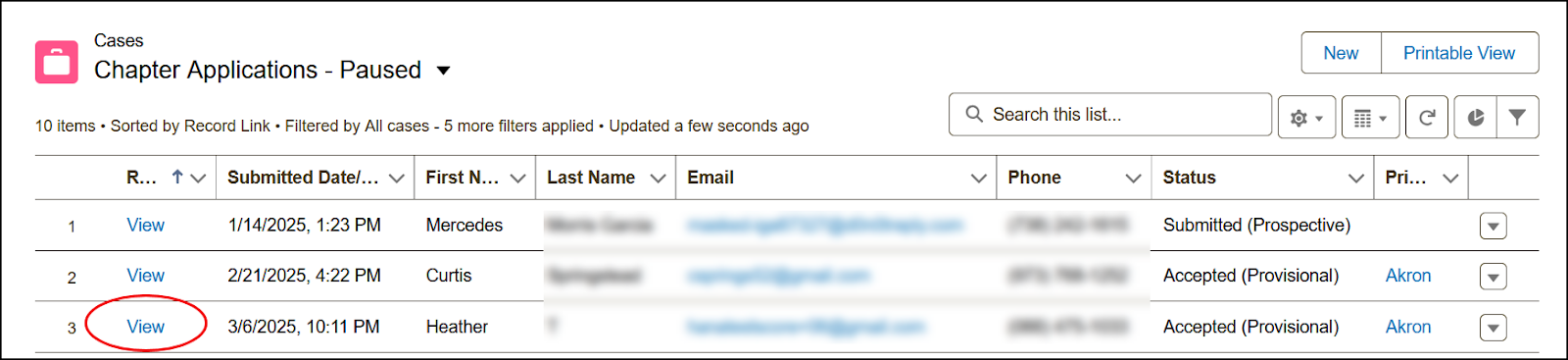
When an application is paused, you can view it quickly in the Applications- Paused list.
Steps
- From the Engage homepage, select Applications – Paused
- Click View next to any application requiring action.
How to Unpause an Application
- From the Engage homepage, select Applications - Paused
- Click View next to the appropriate application.
- Then, on the application, click the drop-down arrow (located at the top of the record) and select Update Application.
- Click the box to uncheck it to unpause the application.
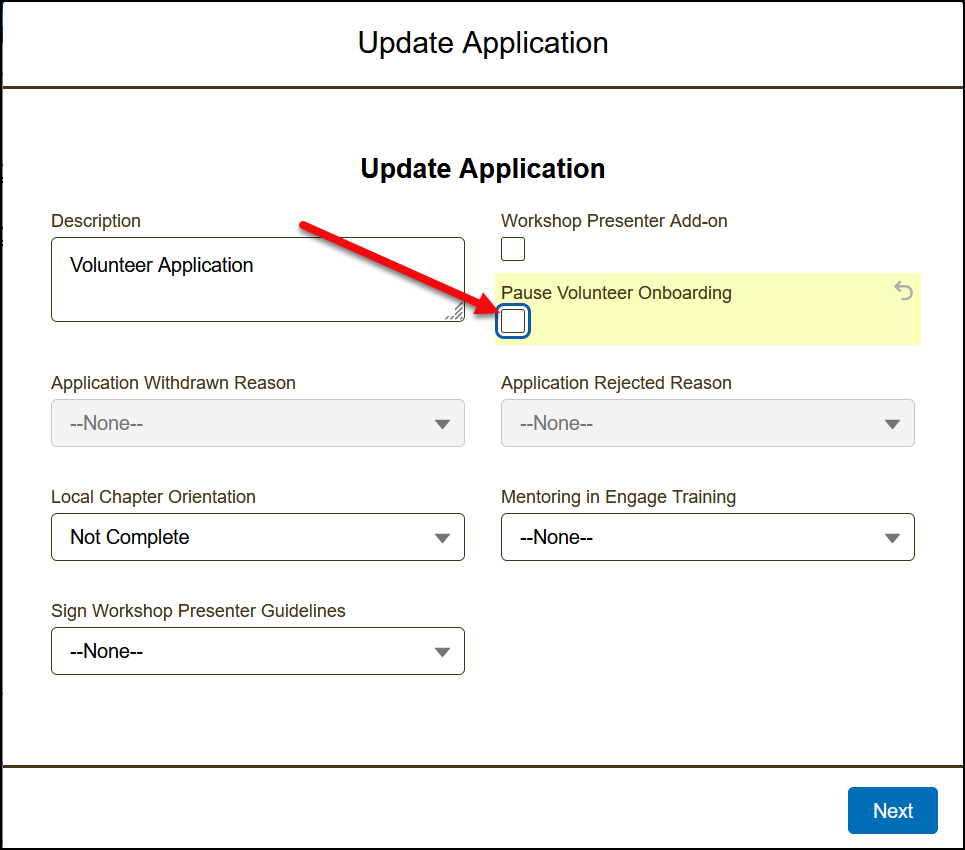
- Click Next to save the changes.
What Happens Next
The application should now be back in the Applications by Status list.
How to Withdraw an Application
- From the Engage homepage, select Applications by Status
- Click View next to the appropriate application.
- Click the pencil icon next to Reject/Withdraw Status.
- Select Withdrawn and provide a reason.
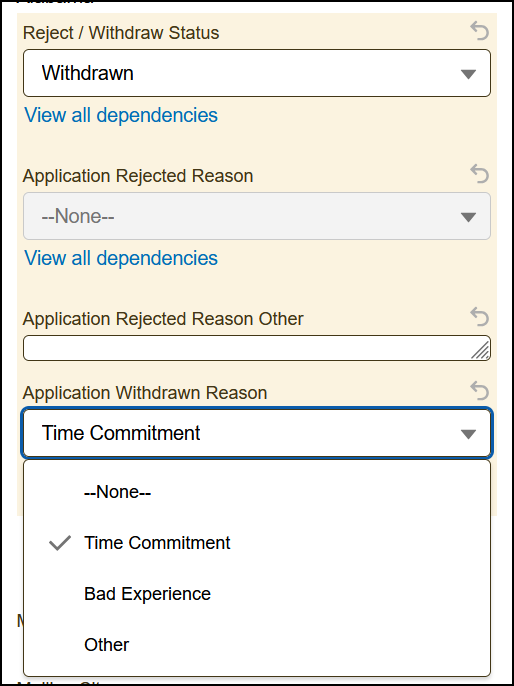
- Click Save at the bottom of the page.
Rejecting Applications
Types of Rejections
There are three common rejection pathways in Engage. Each has specific triggers, timing, and impact on the application and applicant record.
Automatic Rejections (Felony Response)
If an applicant selects YES to the felony question during the application, the system automatically flags the record and notifies SCORE Headquarters.
- These applications do not appear in the RVIC queue.
- Engage sets the application status to Rejected.
- No chapter affiliation is added.
- No action is required from the RVIC.
➤ TIP: If an applicant contacts you regarding this,
refer them to SCORE Headquarters for further clarification.
Interviewer-Based Rejections
Once the applicant reaches the interview stage:
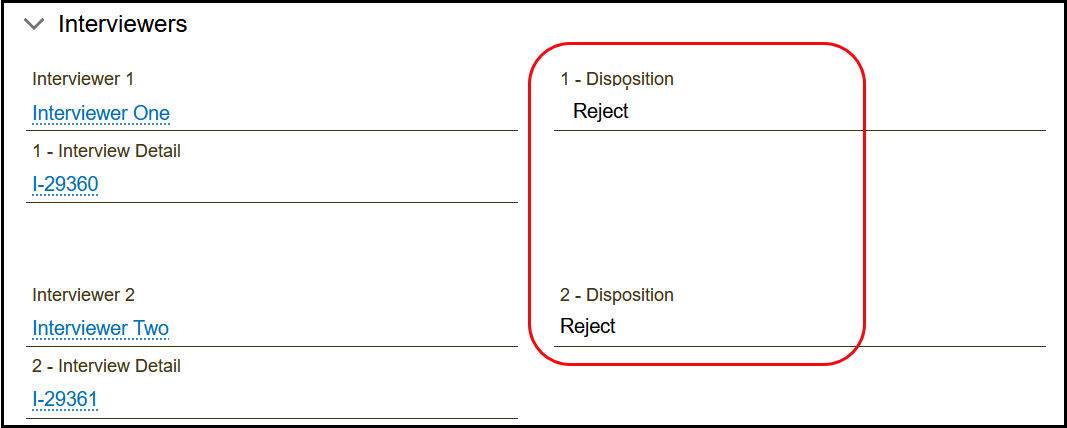
- If both interviewers reject, Engage automatically updates the application status to Rejected.
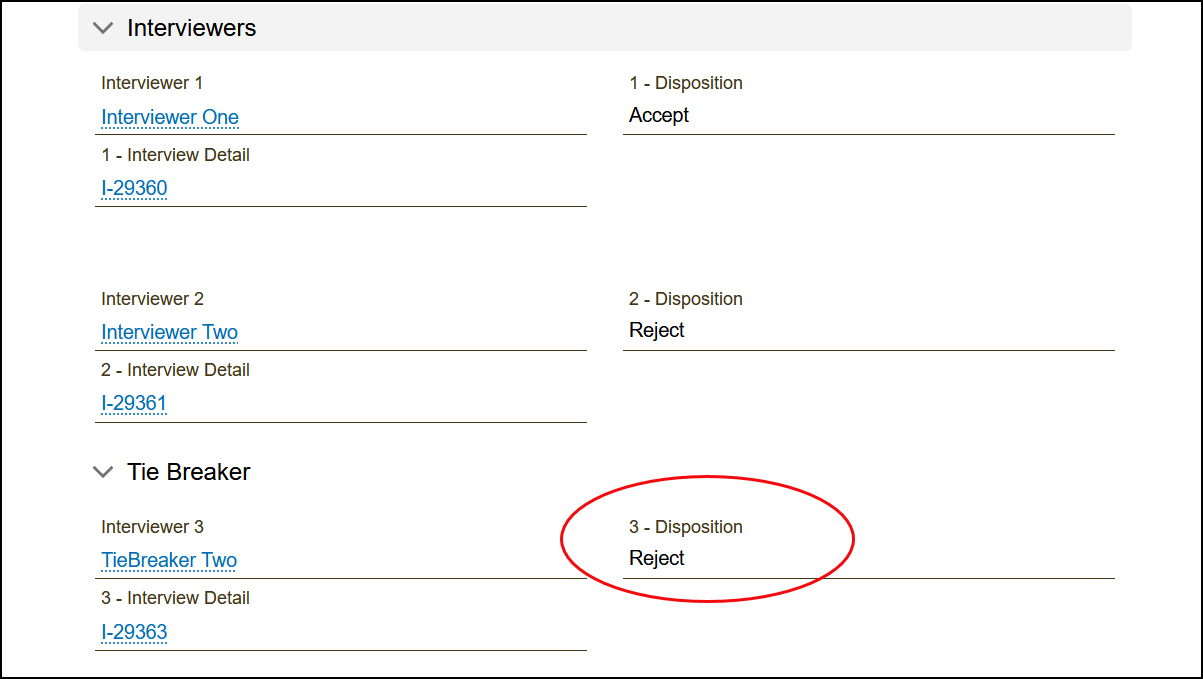
- If there is a tie (1 Accept / 1 Reject), a third interviewer (tie-breaker) is assigned. And if the tie-breaker rejects, the application is marked Rejected.
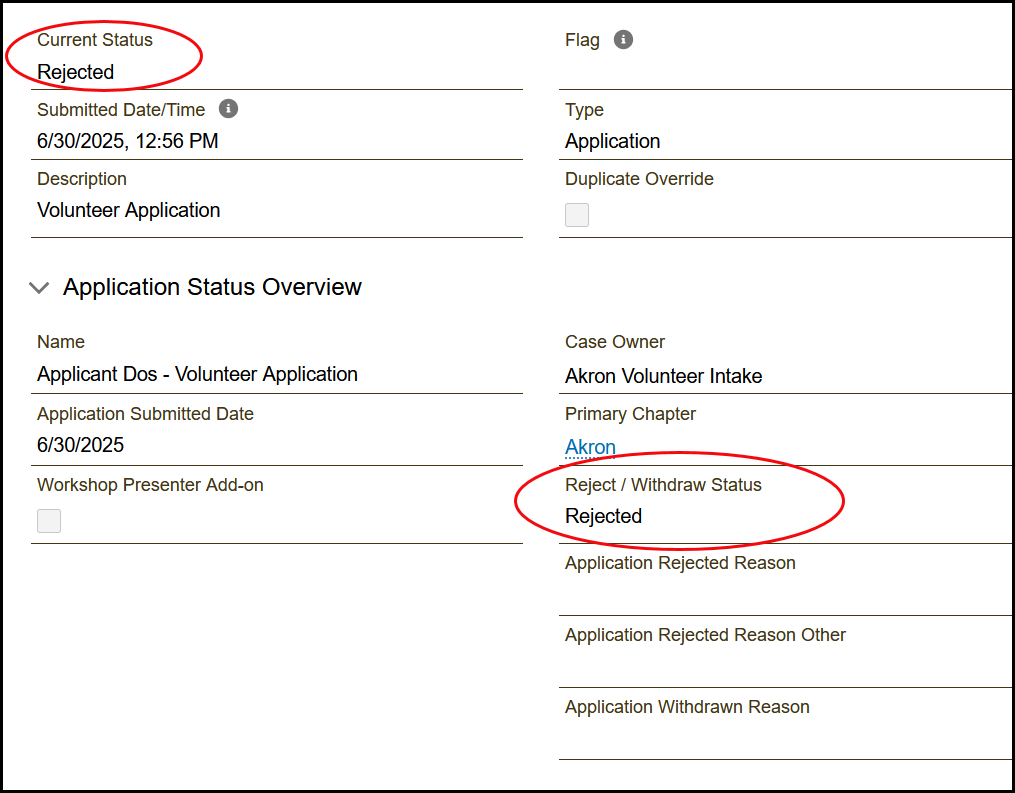
- The RVIC does not need to take any additional action. The Current Status and Reject/Withdraw Status fields will automatically show Rejected.
Manual Rejection by RVIC
This section outlines when and how the Regional Volunteer Intake Coordinator (RVIC) should manually reject a volunteer application in Engage. Rejection is used when an applicant cannot continue in the onboarding process due to specific disqualifying factors.
Common Scenarios for Rejecting an Application
- The applicant is unresponsive despite multiple follow-ups.
- The applicant clearly doesn’t meet eligibility.
- Coach or chapter leadership identifies a critical concern.
Steps
- From the Engage homepage, select Applications – Status
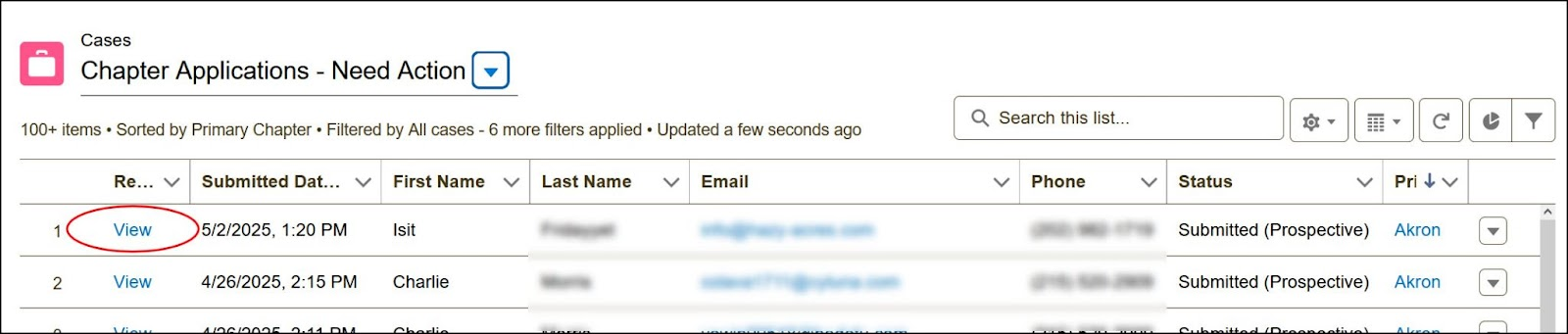
- Click View on the appropriate application.
- Click the pencil icon next to Reject/Withdraw Status.
- Select Rejected and choose a reason from the dropdown. If selecting Other, be sure to provide a brief explanation (e.g., No response after multiple follow-ups).
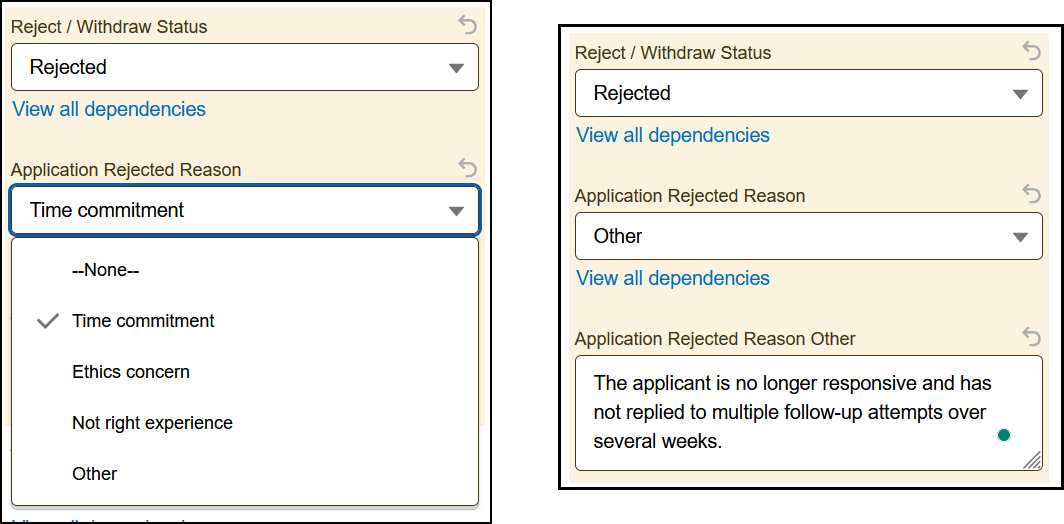
- Click Save.
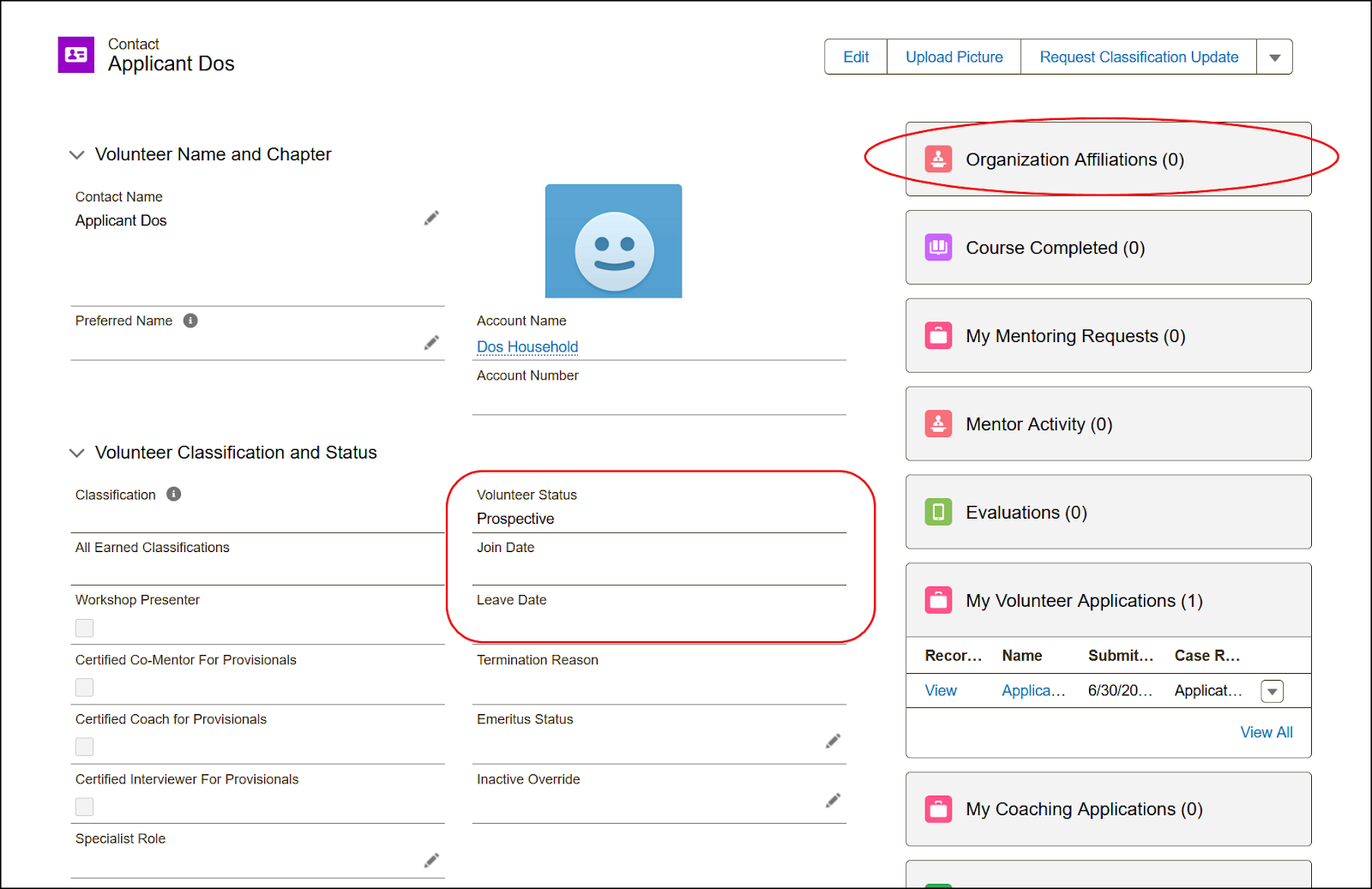
Result: When rejected during the prospective phase, Engage will set the application to Rejected and remove their chapter affiliation. A Leave Date will not be applied, and their status will remain as Prospective.
Related Resource
View the full list of Engage system notifications related to the Volunteer Journey Notifications. (SVO login required)

