How To: Send An Email From The Contact Record

Feb 02, 2026
 2
2
Audience: All Active SCORE Members
Introduction
You can email volunteers and clients from their contact record in Engage. Simply search for their name and click on it from the results dropdown. From their record, you can send an email from the Activity History section.
Send an Email from the Contact Record
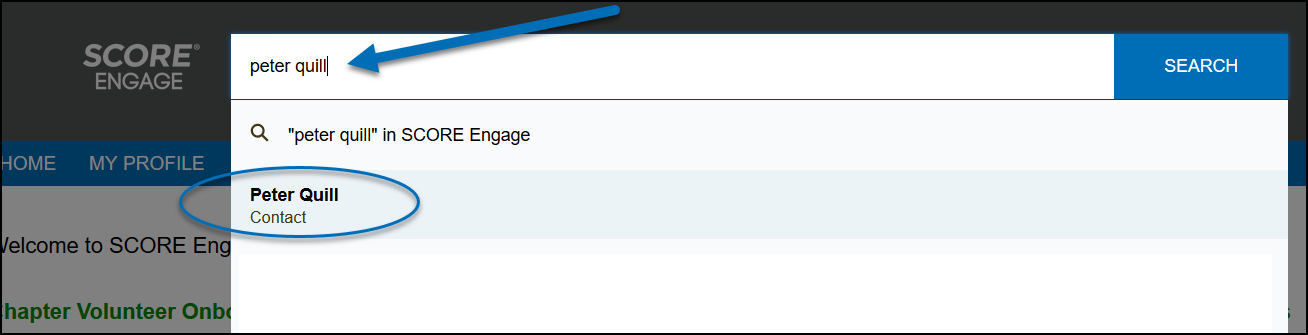
- From the Engage homepage, enter the contact's name in the global search bar and select their name from the results dropdown.
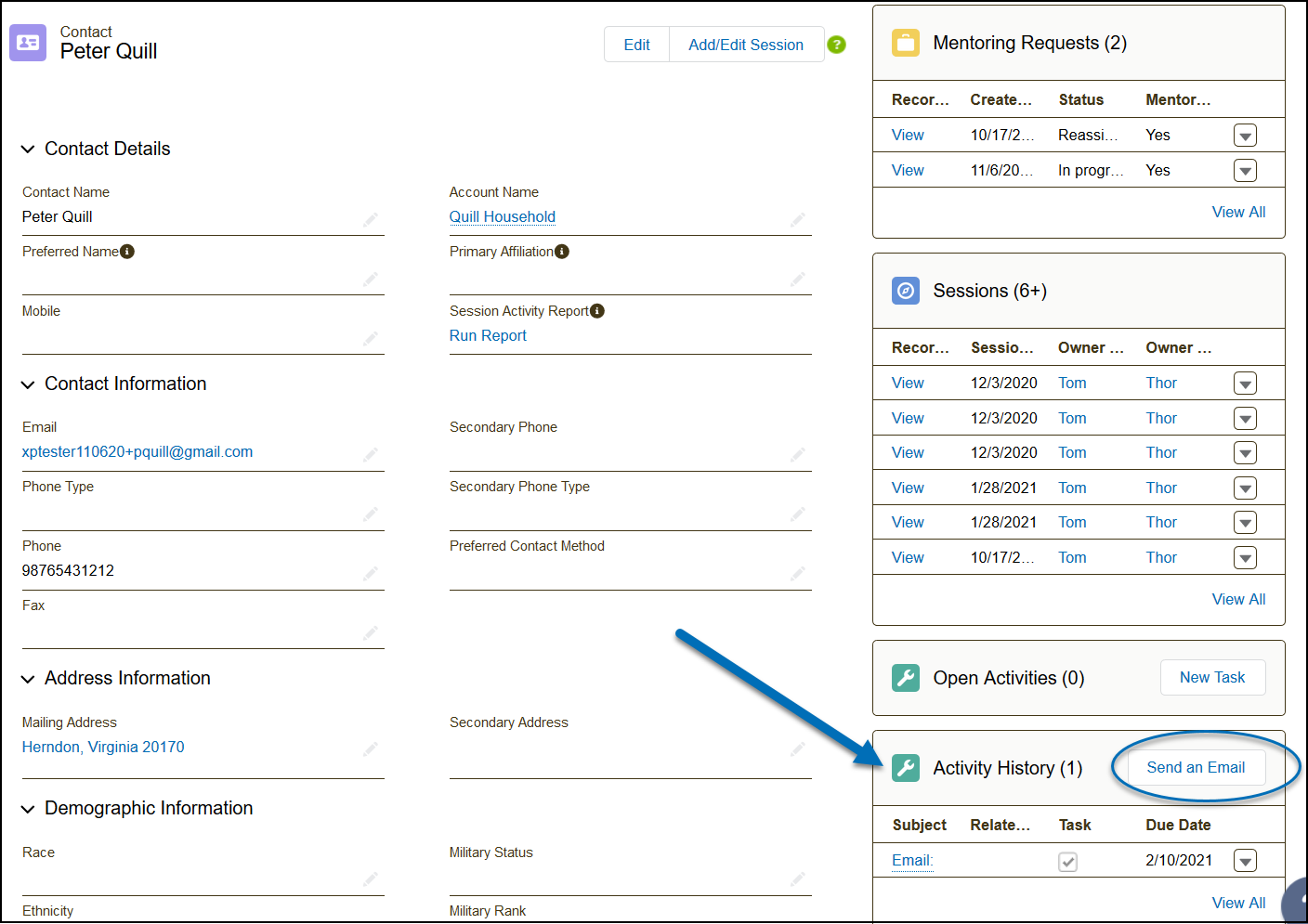
- On their contact record, locate the Activity History section and click the Send an Email button.
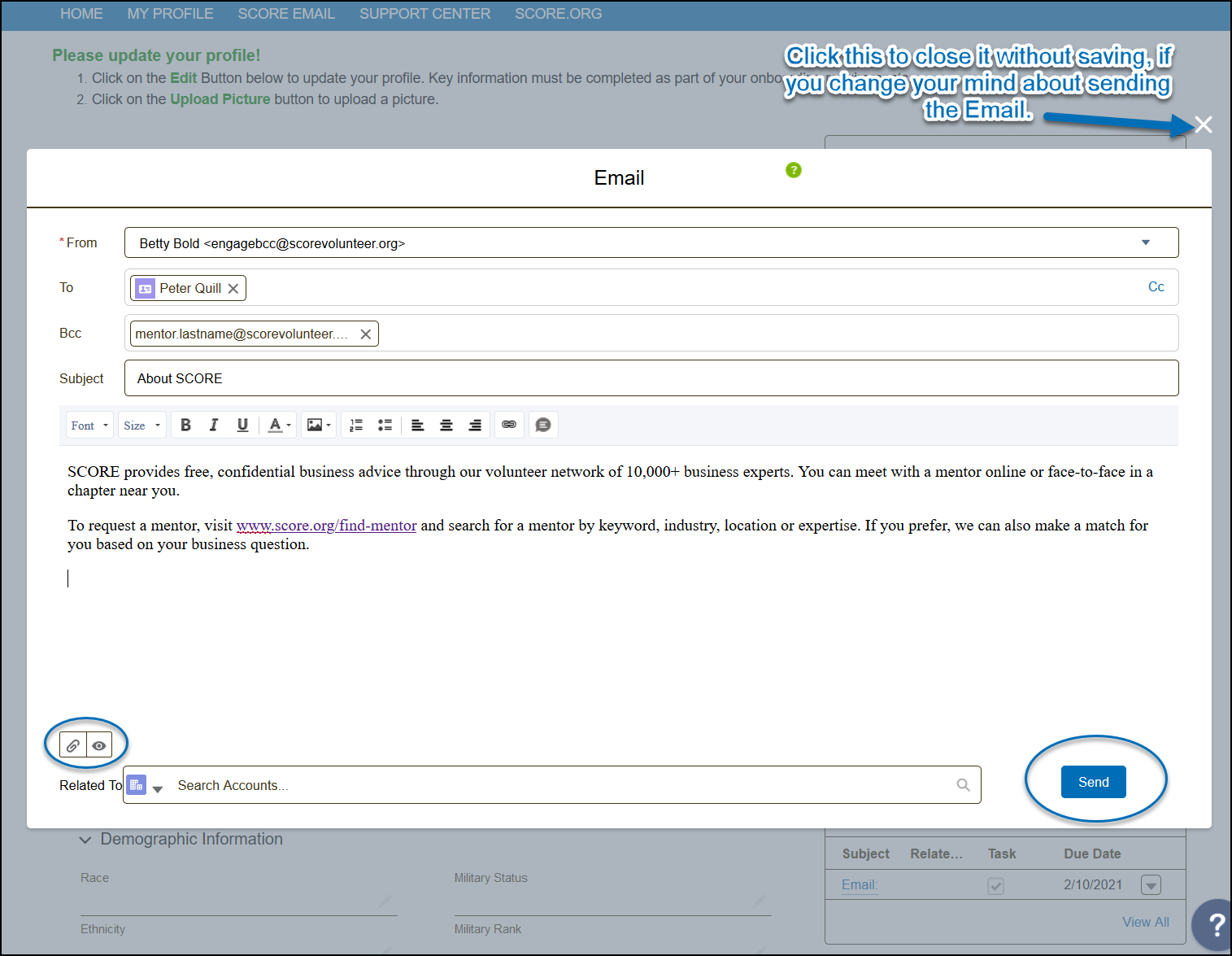
- Compose your message on the pop-up window. You can also add an attachment and/or preview your email before sending it out by clicking the icons found on the bottom left-hand side of the window. Then, click Send.
Note: Your SVO (@scorevolunteer.org) email will be BCC’d on the email so that you receive a copy in your Gmail account.
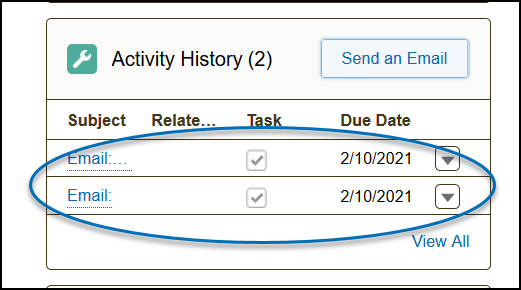
4. Aside from the copy saved in your SVO Mailbox, email messages sent out from a contact record are also viewable and saved under Activity History.